





Now, support All Notion databases, including NotionNext and General Notion databases, and customise the database list.现在,支持所有 Notion 数据库,包括 NotionNext 和通用 Notion 数据库,并可自定义数据库列表。
现在支持所有Notion数据库,包括NotionNext和一般Notion数据库,以及自定义数据库列表。
- Modify the Edit function for the custom properties. 改进自定义属性的编辑功能
- Support sync with long notes (From
v2.4.0). 从v2.4.0开始支持长笔记同步 - Support custom properties for Notion General database. 支持自定义属性
- Support preview for database details in plugin settings. 支持预览数据库详情
- Support edit for database details in plugin settings. 支持编辑数据库详情
- Support group upload with one click 支持一键多数据库上传
If you want to use this plugin, you need to follow the following steps to set up the plugin. The steps can be divided into two parts: setting up the Notion API and setting up the plugin in Obsidian.如果您想使用此插件,需要按照以下步骤进行插件设置。这些步骤可分为两部分:设置 Notion API 和在 Obsidian 中设置插件。
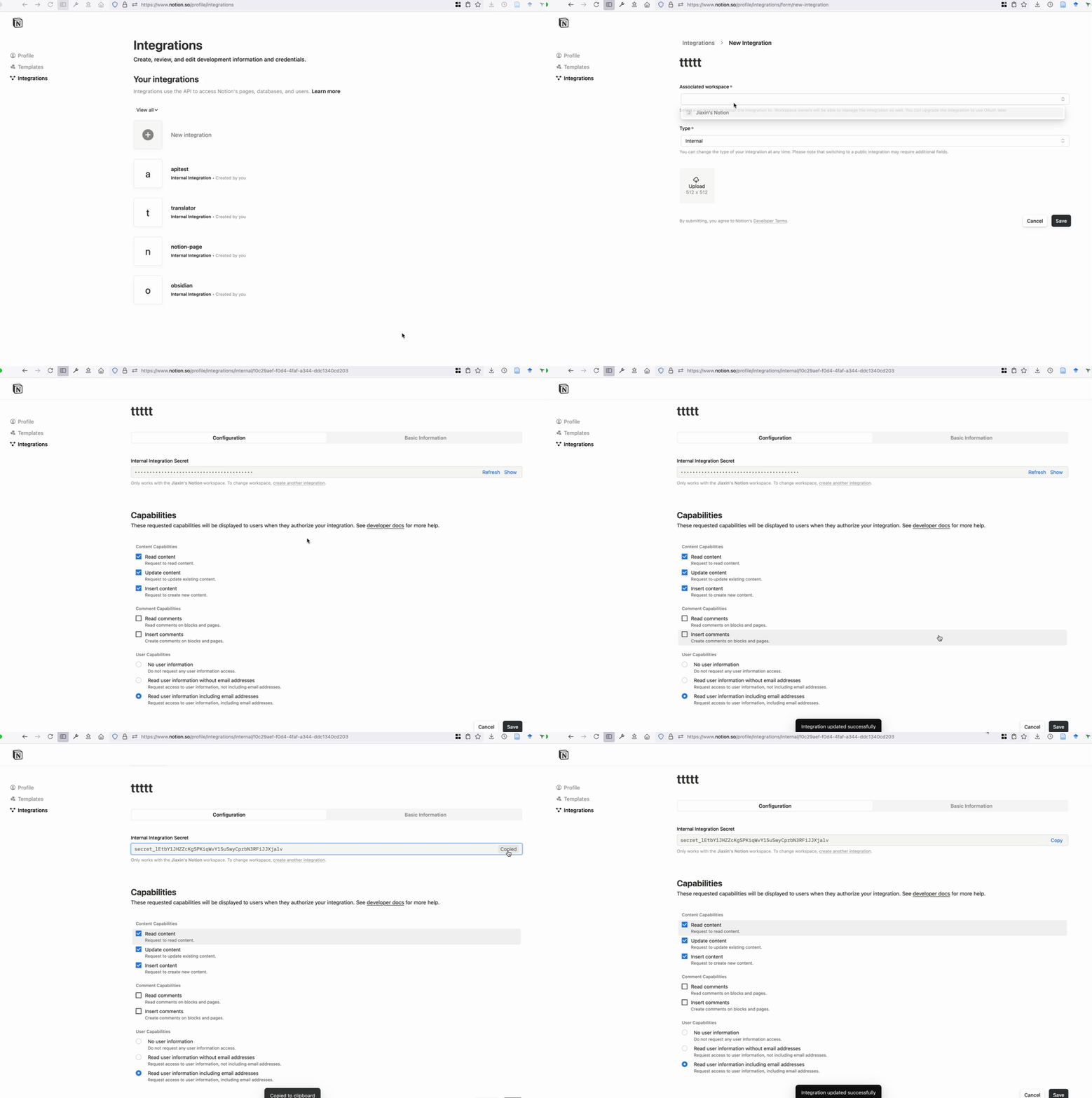
1). Go to Notion API to create a new integration, and copy the token.前往 Notion API 创建一个新的集成,并复制令牌。
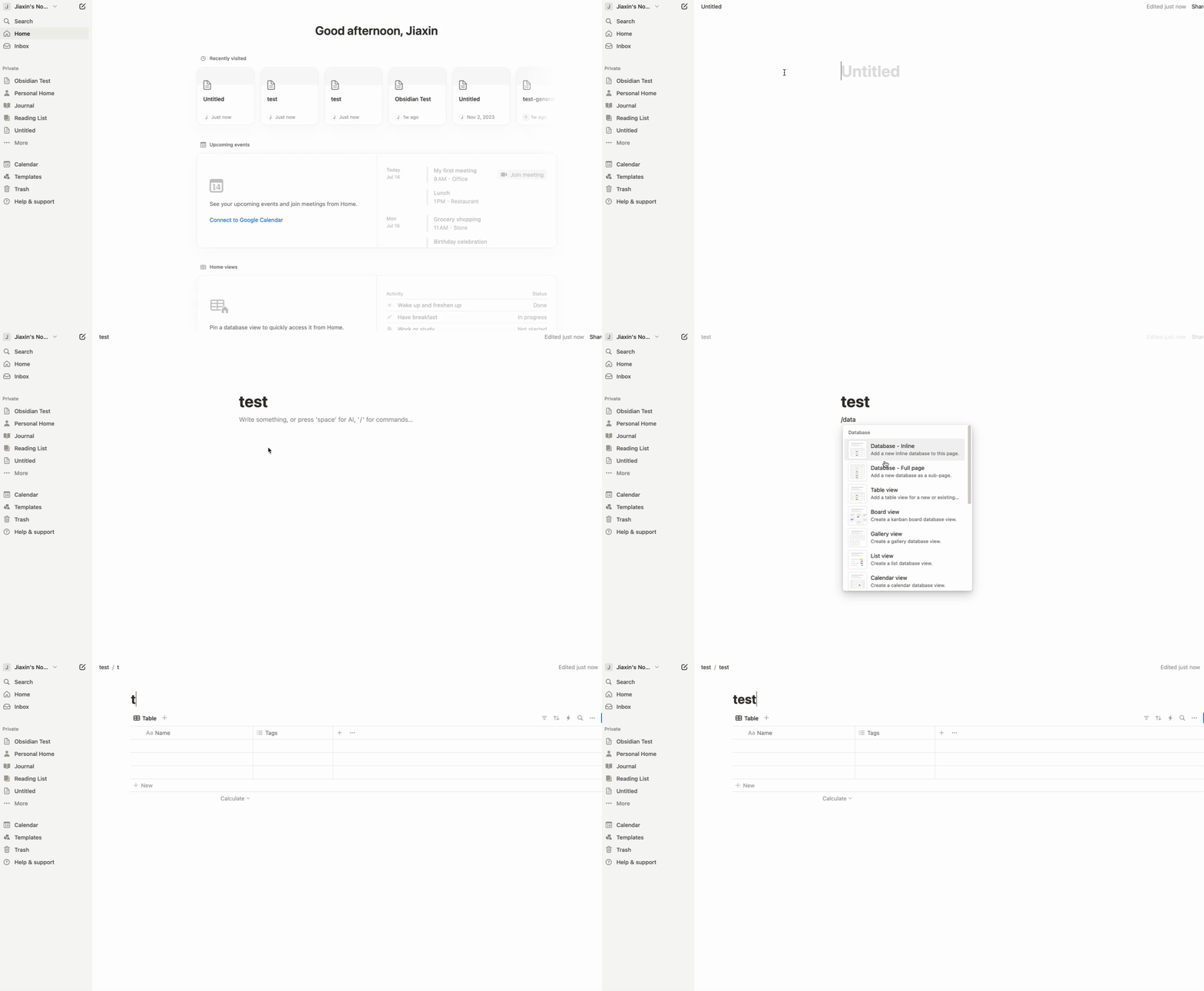
2). Create a database in your Notion workspace.2). 在您的 Notion 工作区中创建一个数据库。
Open Notion, click top-left Create a new page` -> You can give a title for the page and press "/" Select 'Database - Full page'.打开 Notion,点击左上角的 Create 新建一个页面` -> 您可以为页面命名,然后按“/”选择“数据库 - 占满整个页面”。
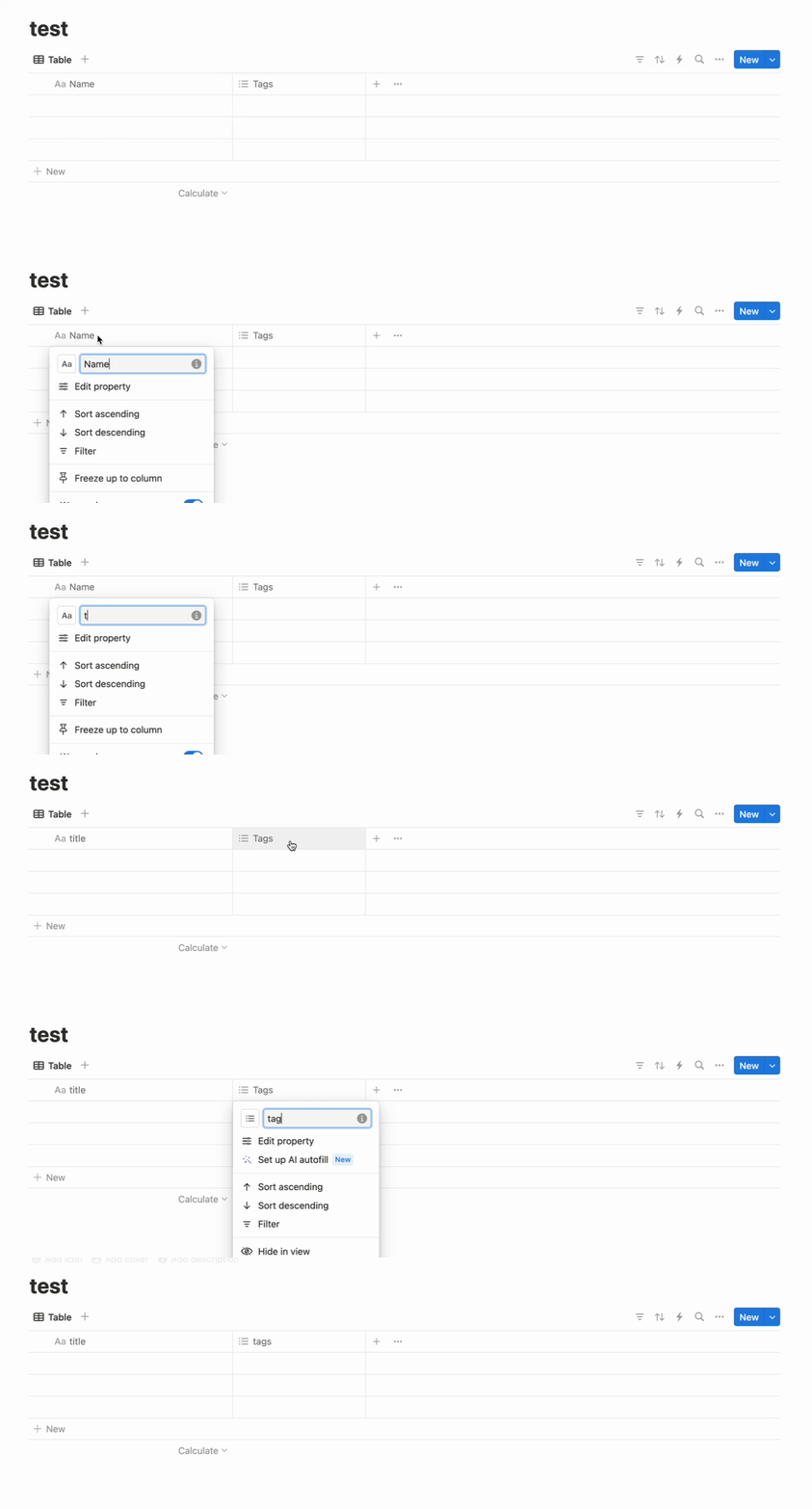
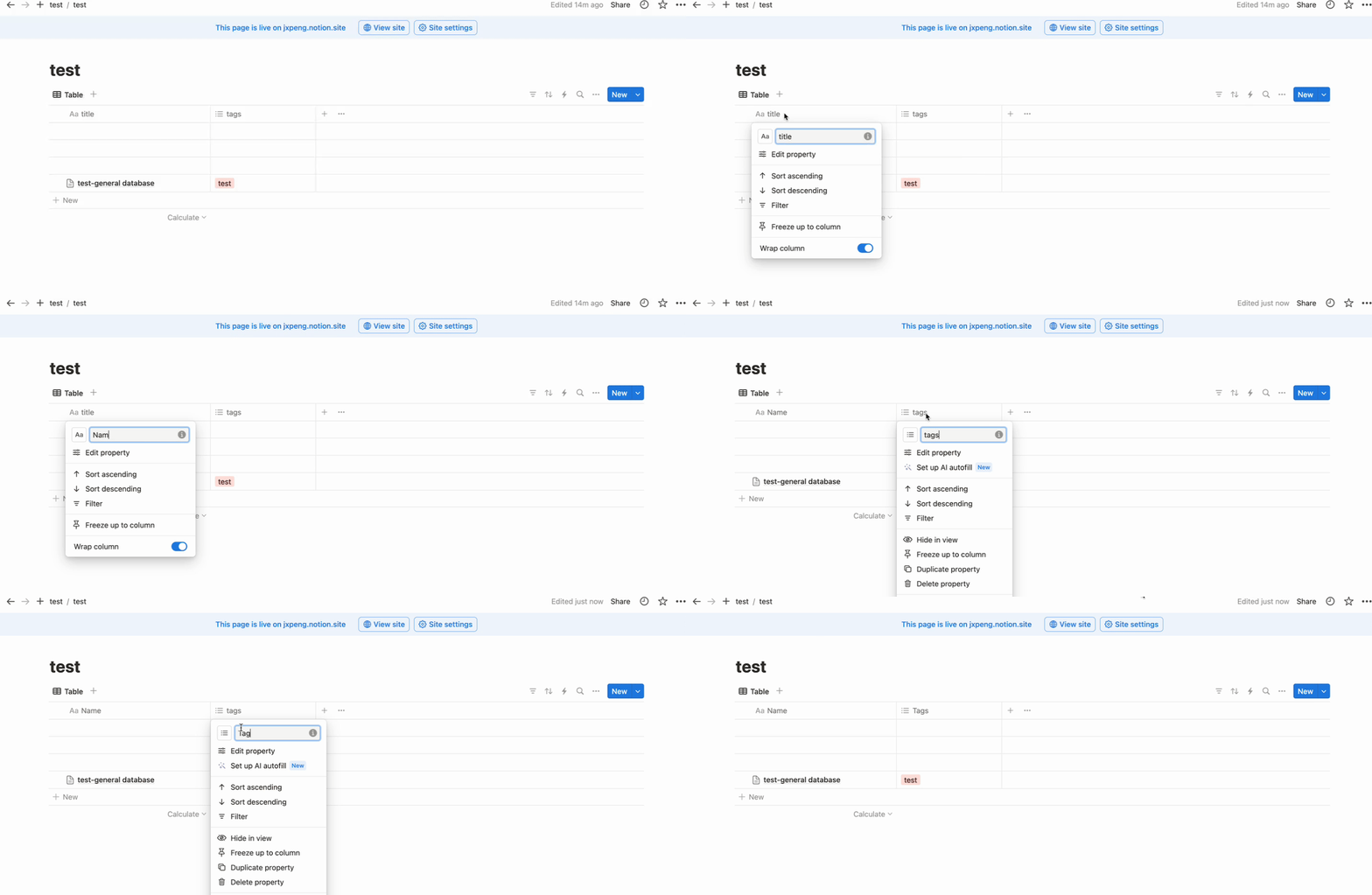
Rename the database properties to title and tags.
title is the title column! tags is lower casetitle 和 tags 。 title 是标题列! tags 是小写
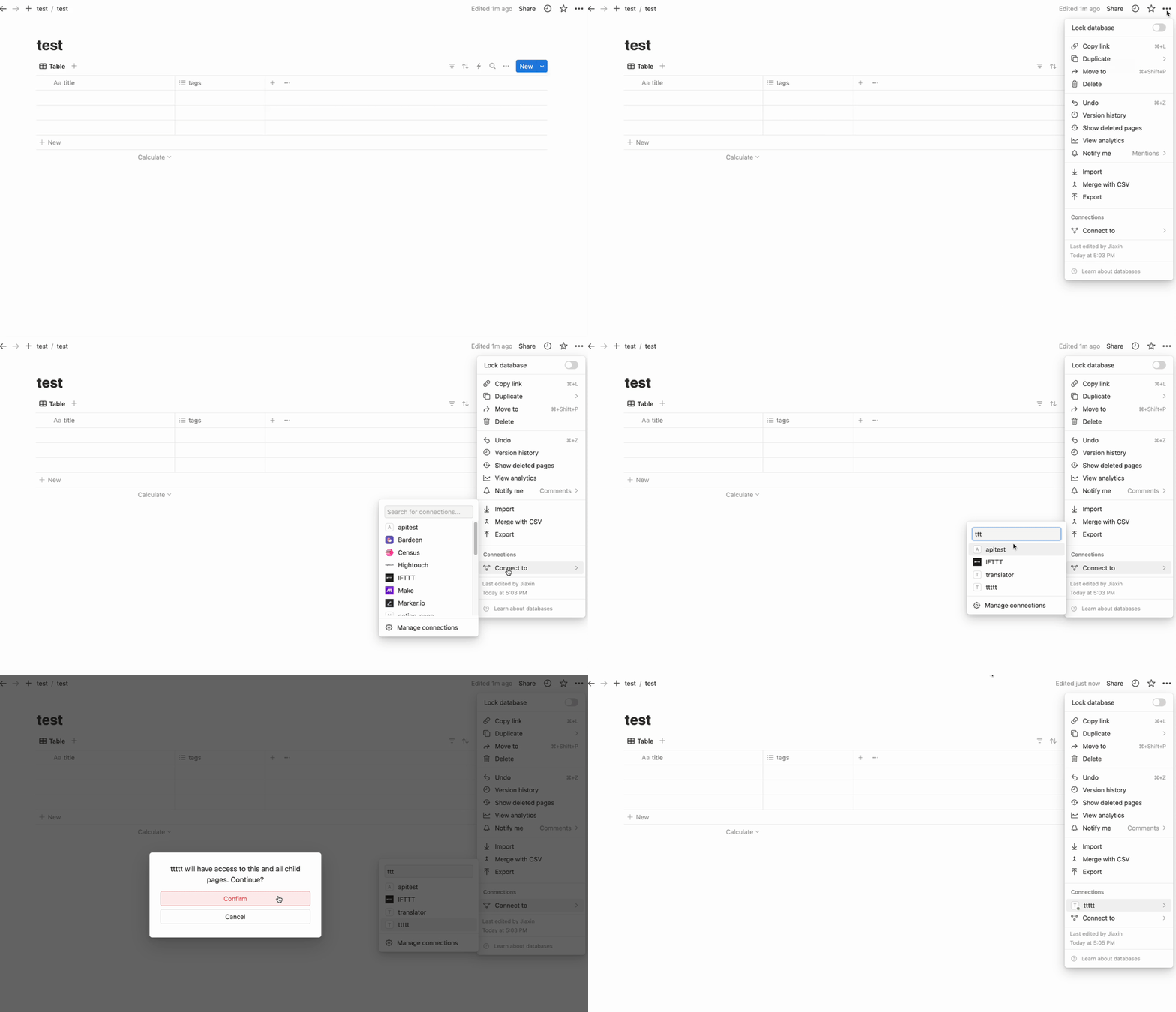
3). Add the Notion API integration.3). 添加 Notion API 集成。
Click the right-top '...' -> connections -> connect to -> find the integration you created and connect it.点击右上角的“...” -> 连接 -> 连接到 -> 找到您创建的集成并连接它。
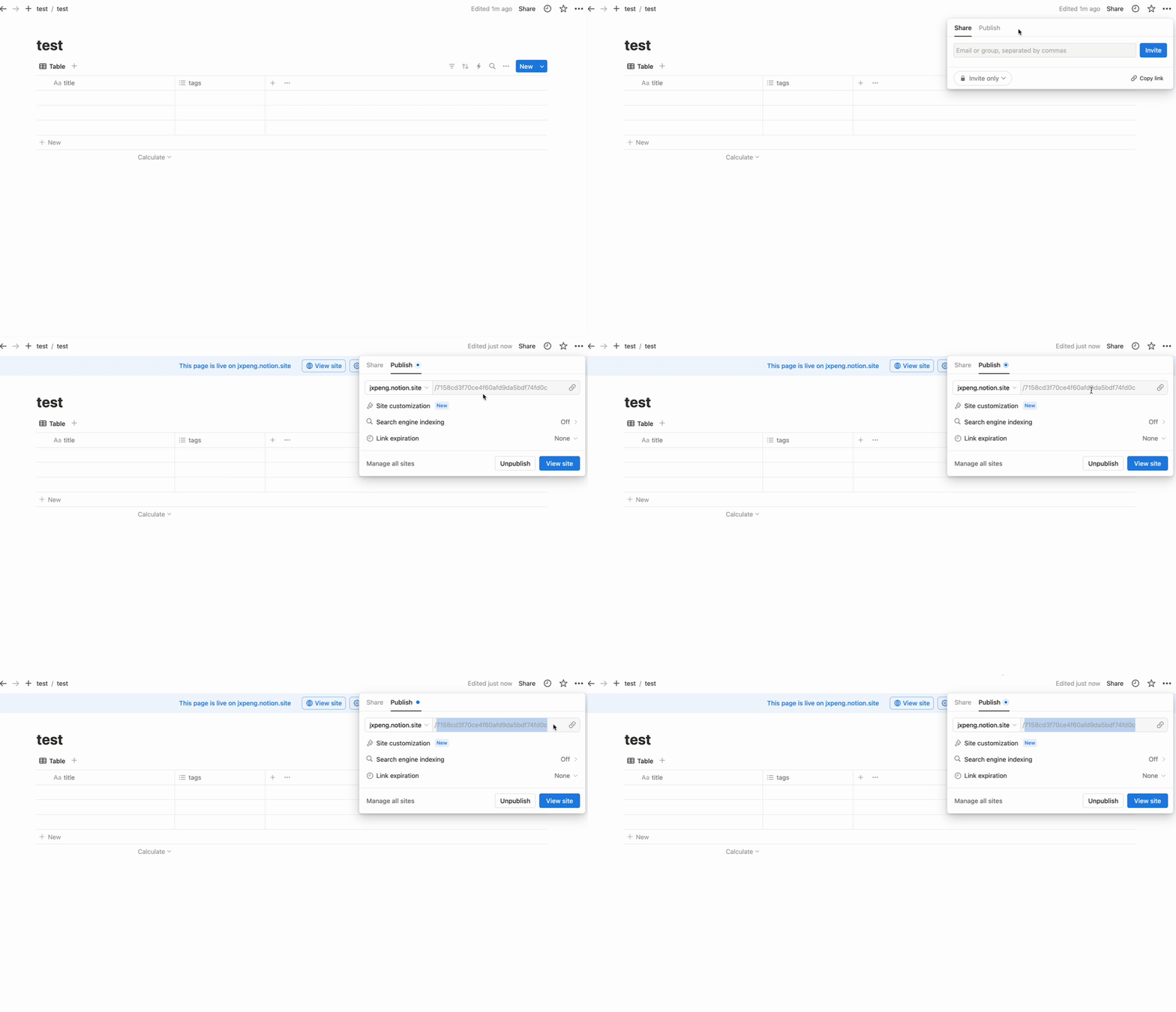
4). Publish the database to the public. Click the 'Share' -> 'Publish' -> 'Publish' -> copy the database id from the URL.4). 将数据库发布给公众。 点击“共享” -> “发布” -> “发布” -> 从网址中复制数据库 ID。
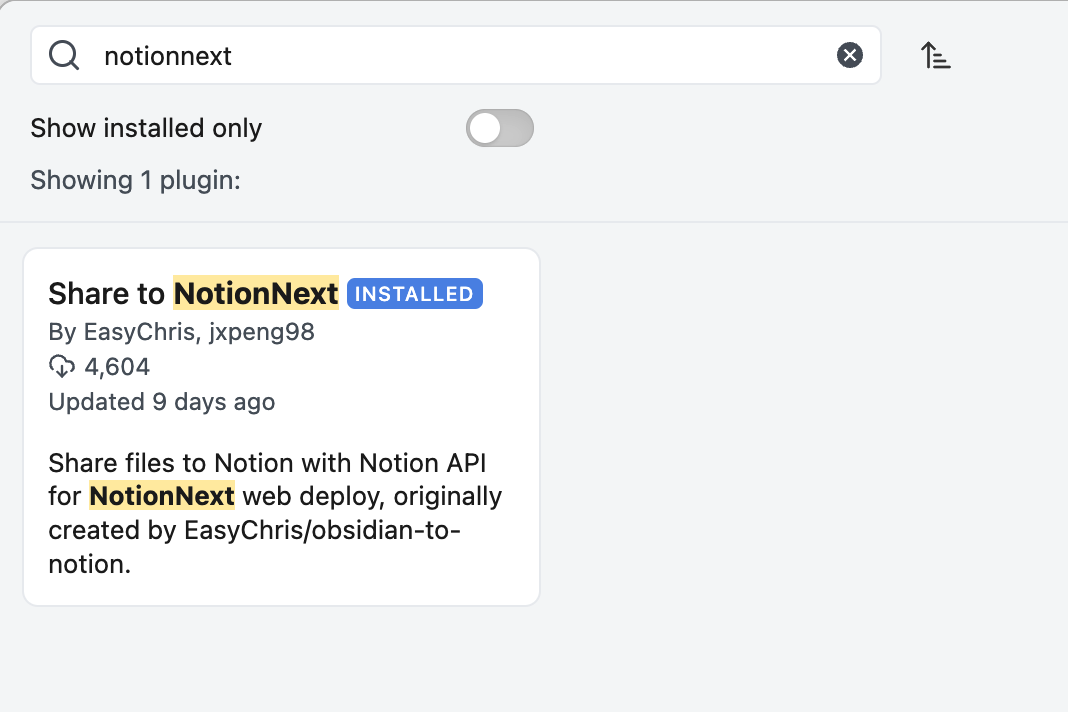
1). Go to Obsidian settings -> community plugins -> search 'NotionNext' -> install it.
前往 Obsidian 设置 -> 社区插件 -> 搜索“NotionNext” -> 安装它。
2). Open the plugin settings and create a new database.2). 打开插件设置并创建一个新的数据库。
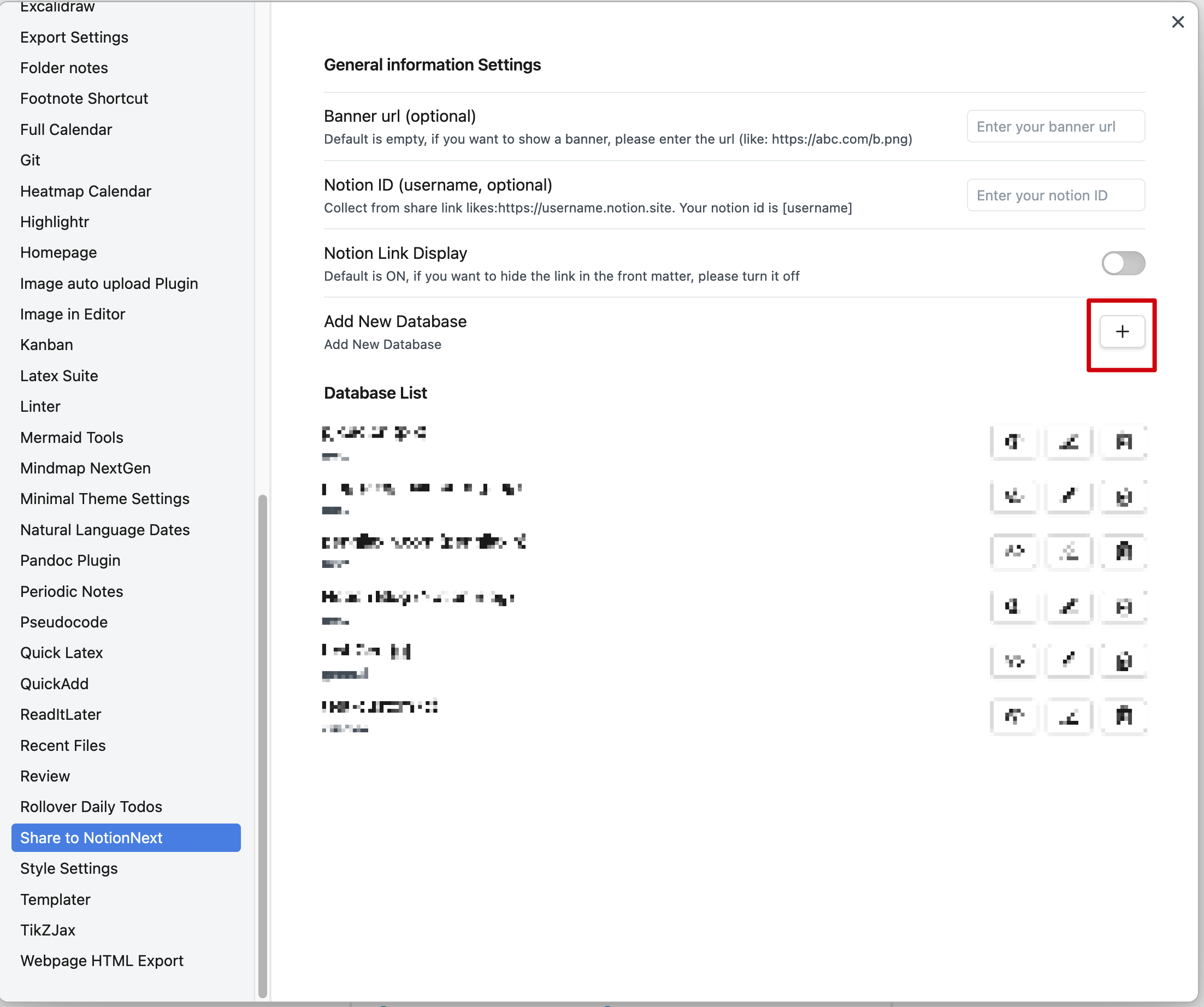
You can create three types of databases:您可以创建三种类型的数据库:
General database is the default database, which only has the title and tags columns. title and tags are lowercasetitle 和 tags 两列。 title 和 tags 为小写
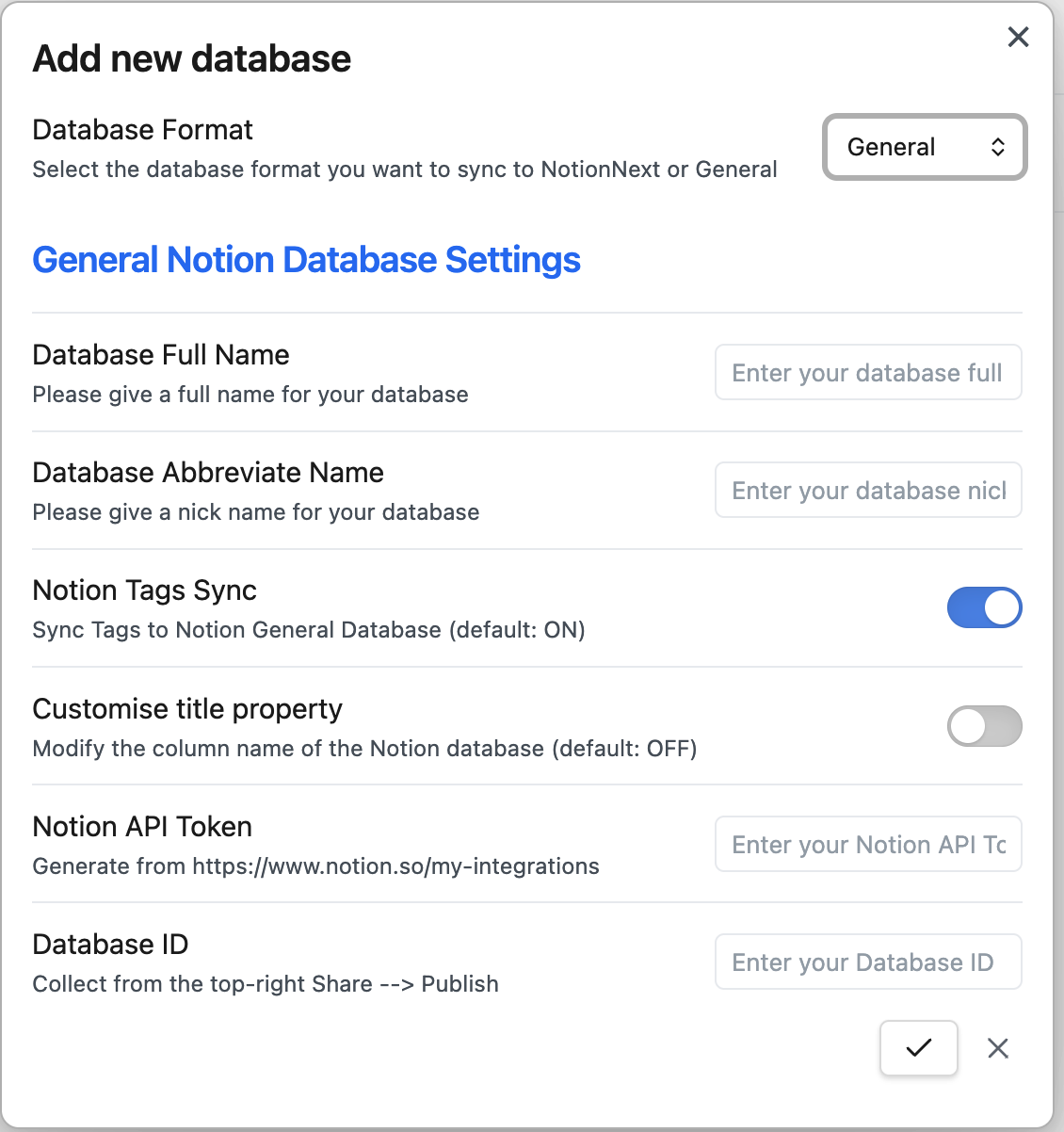
The general is as follows:大致情况如下:
- Full Name: the full name that you would like to give to the database.全名:您希望在数据库中使用的全名。
- Abbreviate Name: the abbreviation that you would like to give to the database.缩写名称:您希望为数据库提供的缩写。
- Notion tags sync: whether you want to sync the tags column to Notion.Notion 标签同步:您是否希望将标签列同步到 Notion。
- Customise title property: whether you want to change the
titleto another name (e.g.,name).自定义标题属性:您是否想要将title更改为其他名称(例如name)。 - Notion API token: the token you copied from the Notion API page.Notion API 令牌:您从 Notion API 页面复制的令牌。
- Notion Database ID: the database ID you copied from the Notion database URL. (e.g., only copy
7158cd3f70ce4f60afd9da5bdf74fd0cbetweensite/and?.https://jxpeng.notion.site/7158cd3f70ce4f60afd9da5bdf74fd0c?v=380317ac5373sadasdas3c13e618f&pvs=4**)Notion 数据库 ID:您从 Notion 数据库 URL 中复制的数据库 ID。(例如,仅复制7158cd3f70ce4f60afd9da5bdf74fd0c中的内容,位于site/和?之间。https://jxpeng.notion.site/7158cd3f70ce4f60afd9da5bdf74fd0c?v=380317ac5373sadasdas3c13e618f&pvs=4**)
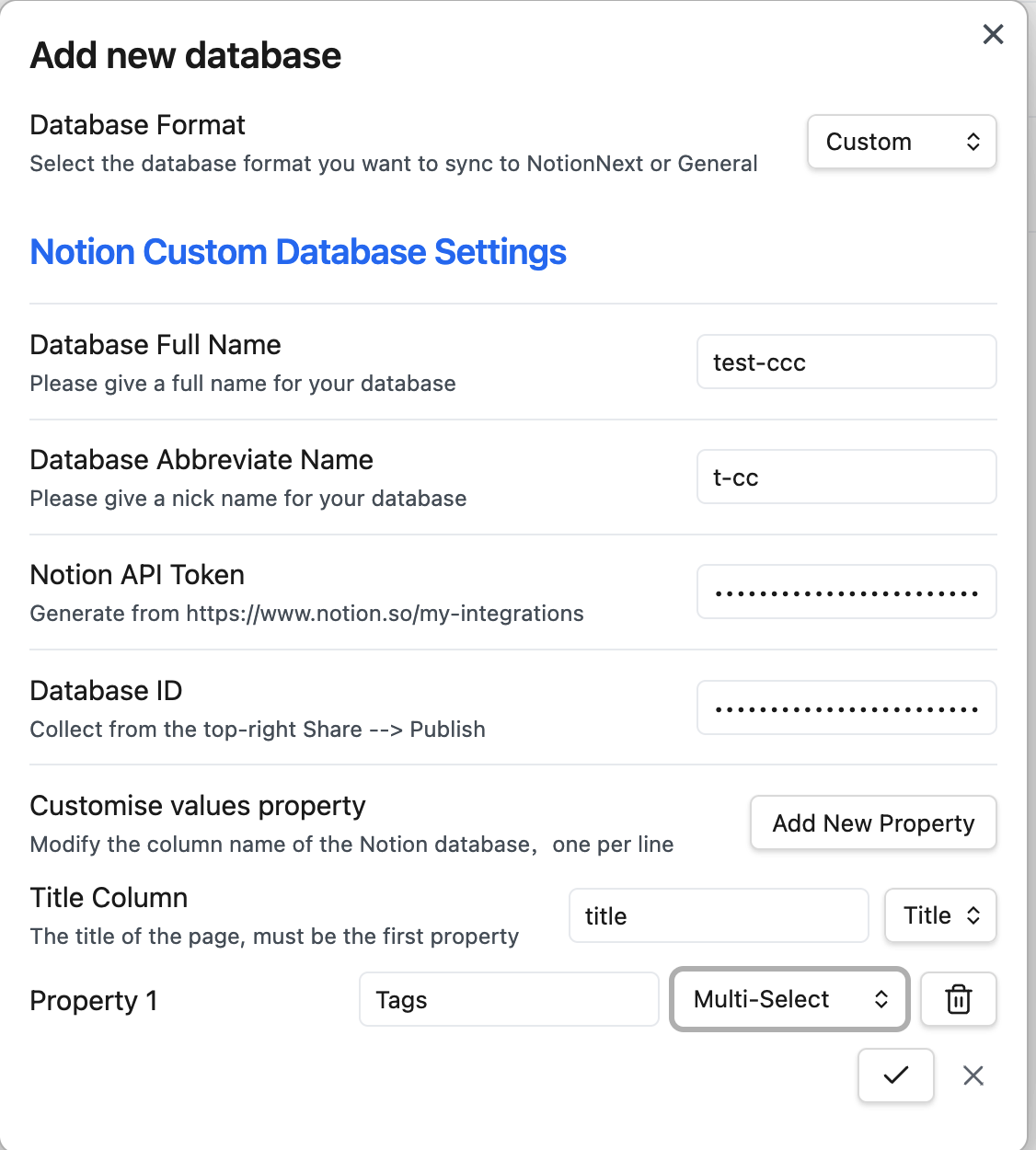
After setting, it should look like this:设置完成后,它应该看起来像这样:
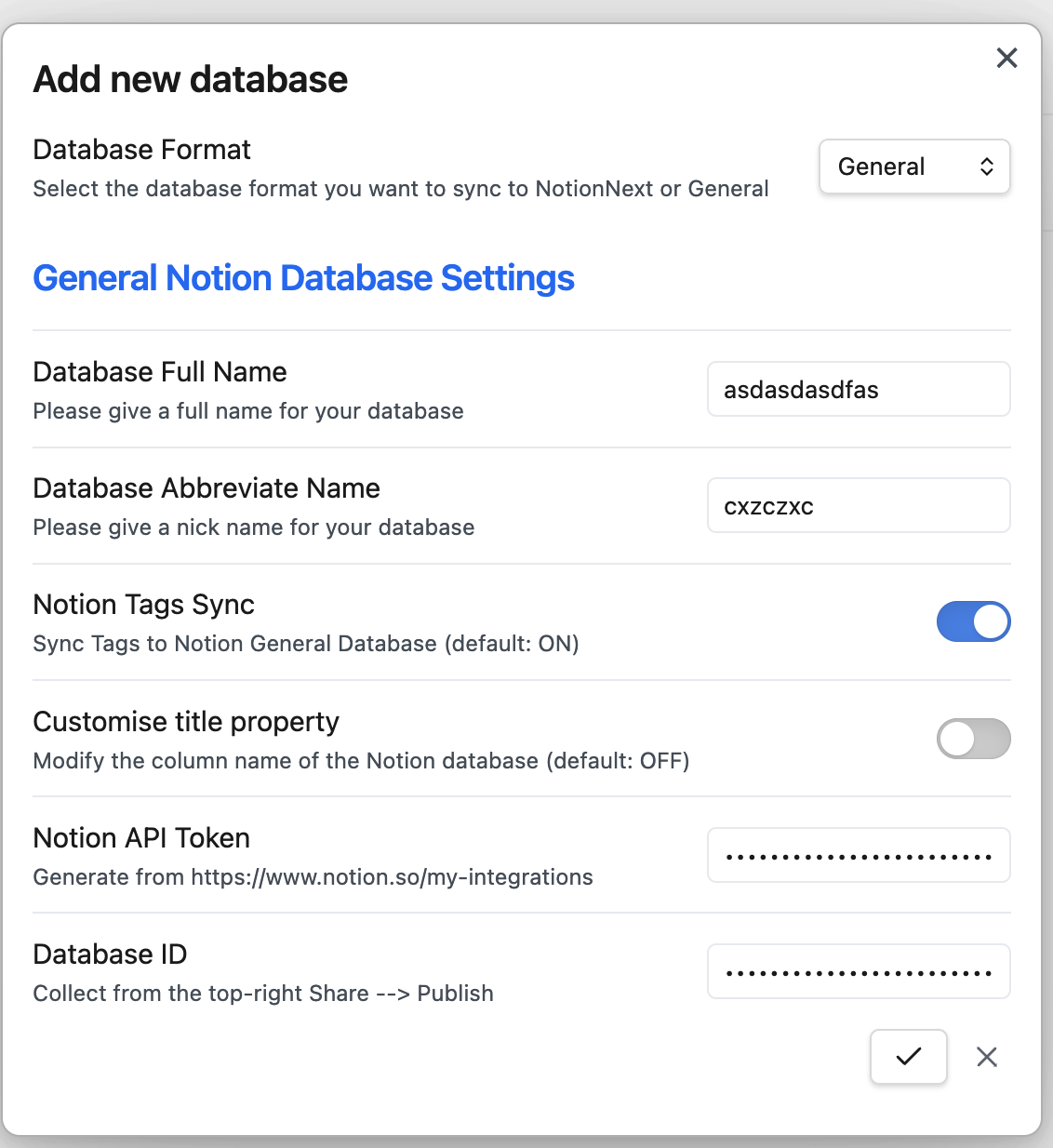
Once you click save, the new database will be created in the plugin settings and display in the detabase list.一旦您点击 save ,新的数据库将在插件设置中创建,并显示在数据库列表中。

If you use NotionNext to set up your website, you can use the NotionNext database. (All the properties are in lowercase, and you do not need to change the properties)如果您使用 NotionNext 来搭建您的网站,您可以使用 NotionNext 数据库。(所有属性均为小写,无需更改属性)
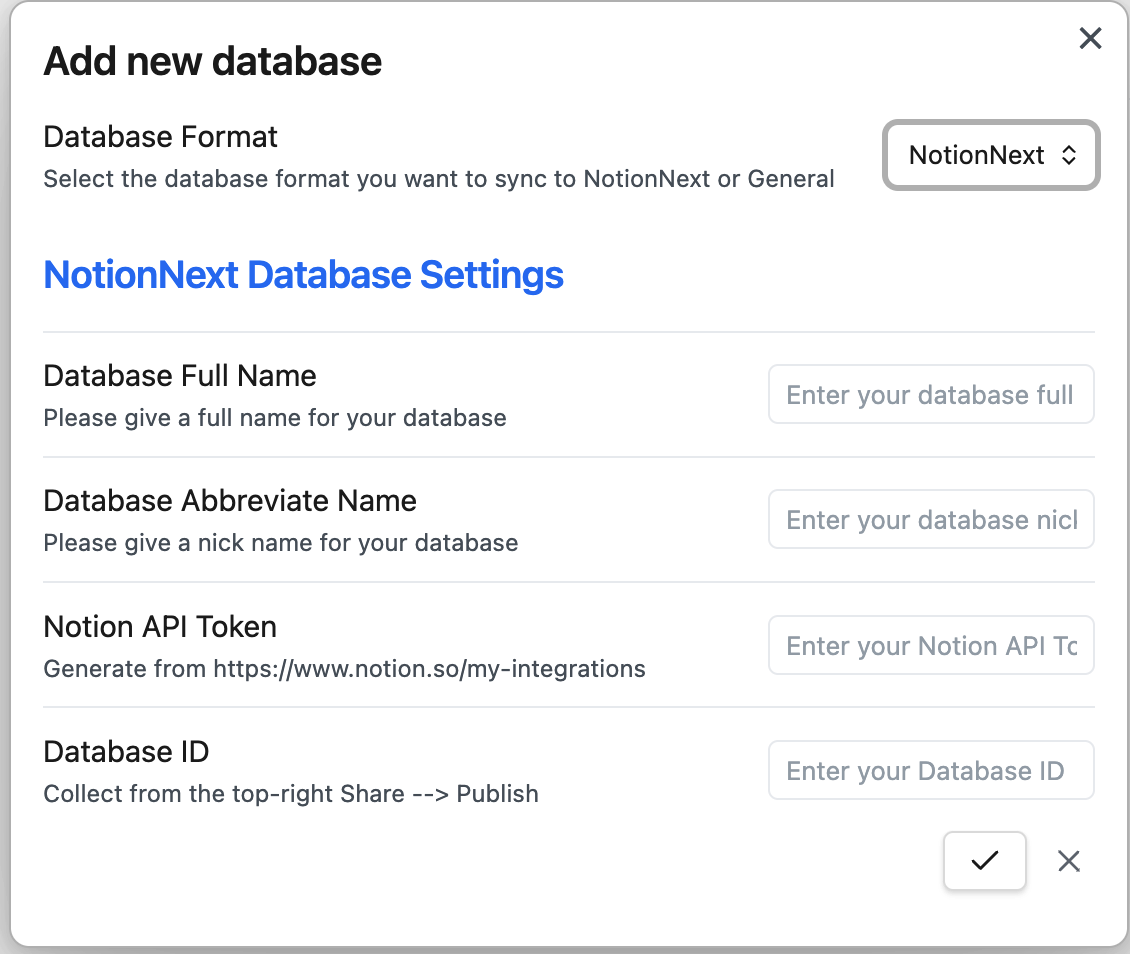
Like the general database, you need to fill in the following information:和一般的数据库一样,您需要填写以下信息:
- Full Name: the full name that you would like to give to the database.全名:您希望在数据库中使用的全名。
- Abbreviate Name: the abbreviation that you would like to give to the database.缩写名称:您希望为数据库提供的缩写。
- Notion API token: the token you copied from the Notion API page.Notion API 令牌:您从 Notion API 页面复制的令牌。
- Notion Database ID: the database ID you copied from the Notion database URL.Notion 数据库 ID:您从 Notion 数据库 URL 中复制的数据库 ID。
The custom database is purely customised, and you can customise the properties you want to sync. (All the properties are in lowercase, and you do not need to change the properties)自定义数据库完全是定制的,您可以自定义想要同步的属性。(所有属性均为小写,无需更改属性)
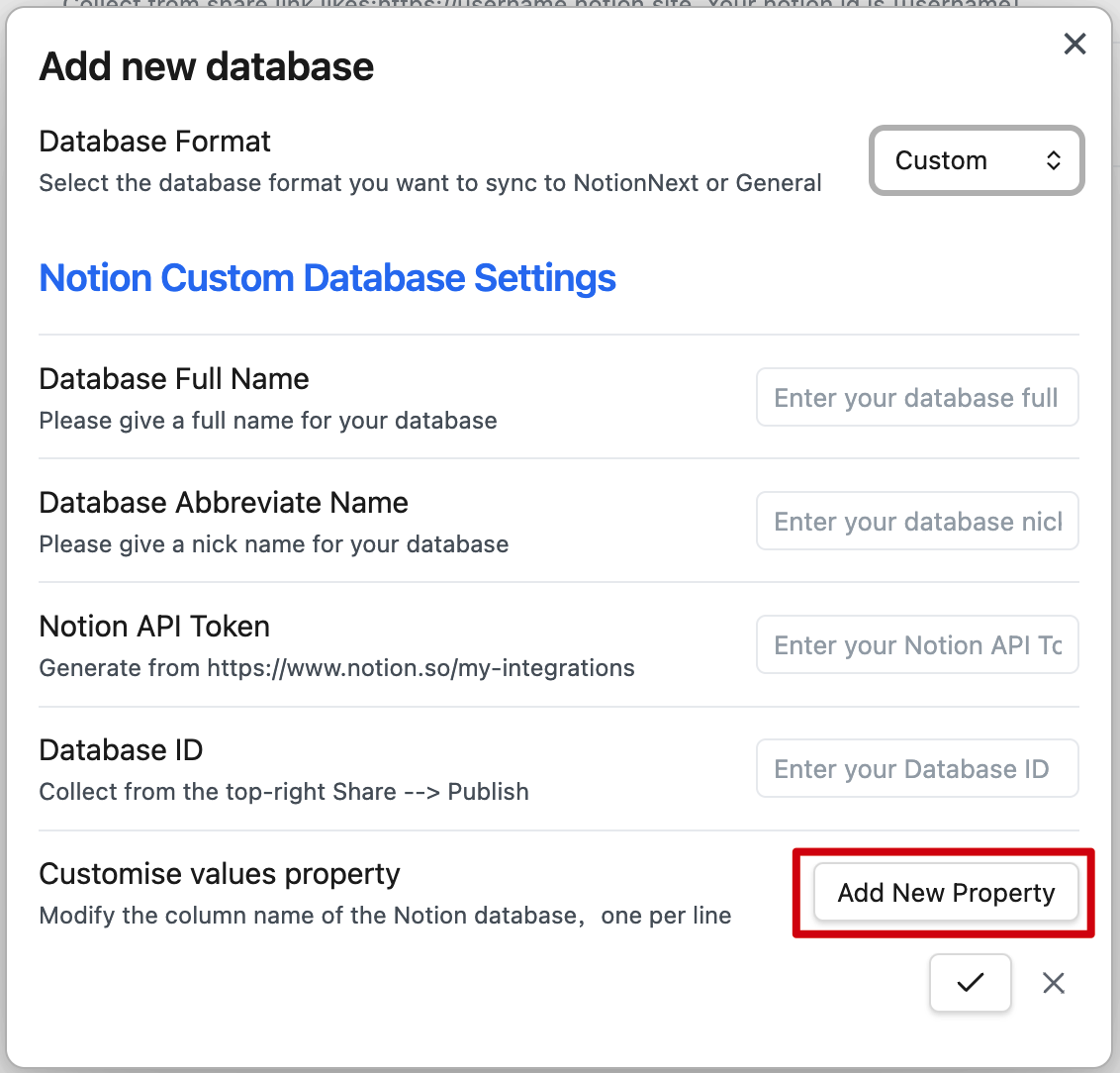
The basic information is identical to the general database and NotionNext database. You need to fill in the following information:基本信息与通用数据库和 NotionNext 数据库相同。您需要填写以下信息:
- Full Name: the full name that you would like to give to the database.全名:您希望在数据库中使用的全名。
- Abbreviate Name: the abbreviation that you would like to give to the database.缩写名称:您希望为数据库提供的缩写。
- Notion API token: the token you copied from the Notion API page.Notion API 令牌:您从 Notion API 页面复制的令牌。
- Notion Database ID: the database ID you copied from the Notion database URL.Notion 数据库 ID:您从 Notion 数据库 URL 中复制的数据库 ID。
After adding the information, You can click Add New Property to add the properties you want to sync. There is no limit to the number of properties you can add.添加信息后,您可以点击 Add New Property 来添加您想要同步的属性。您可以添加的属性数量没有限制。
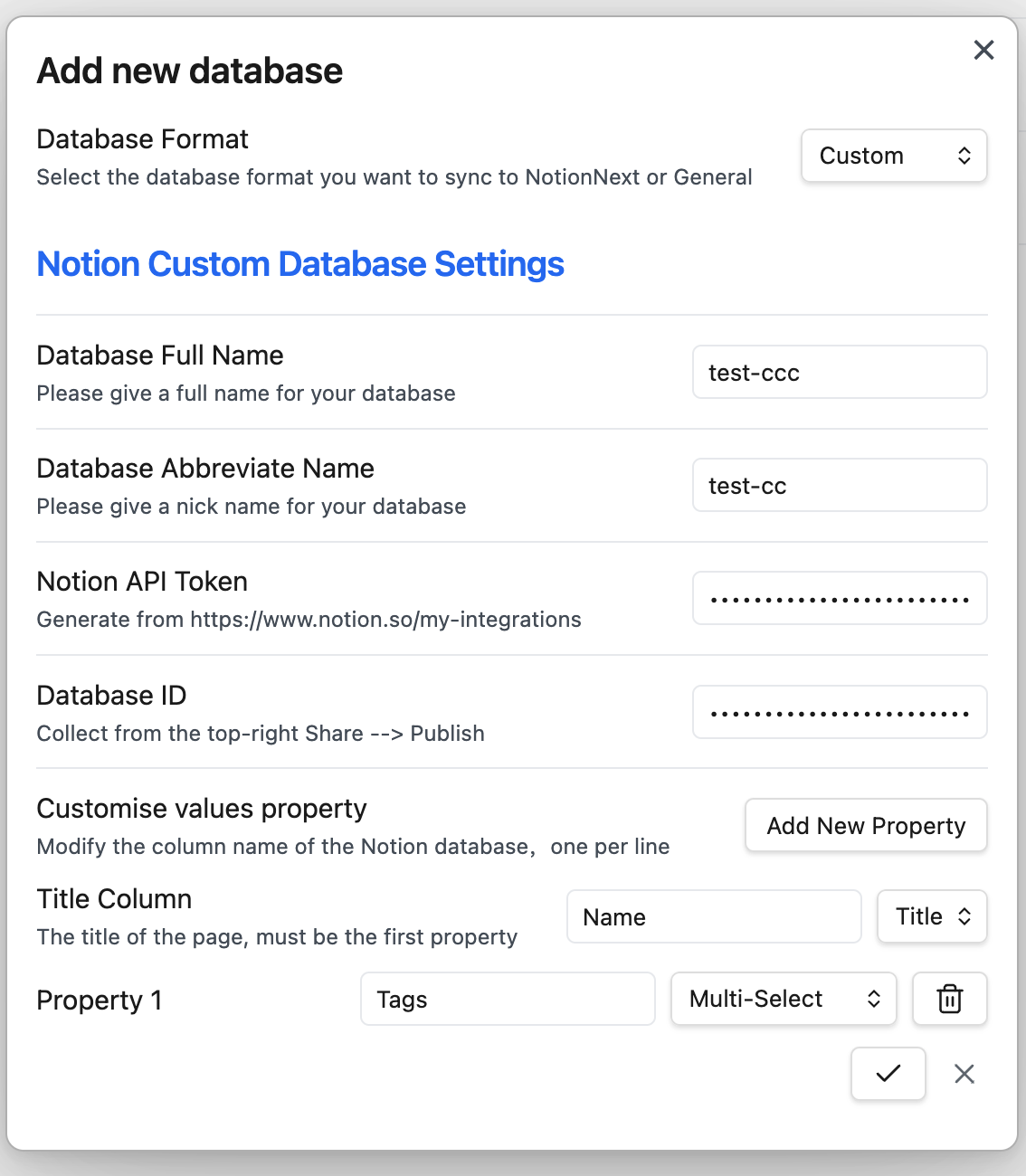
Title column is the main property in the Notion database, which has the open button to open the underlying page. You can select the type of all other properties. Title column 是主要属性,它带有打开按钮,可打开底层页面。您可以选择所有其他属性的类型。
According to the previously shown database, you can use title as the Title column, and Tags as the property 1.根据之前展示的数据库,您可以将 title 用作 Title column ,并将 Tags 用作属性 1。
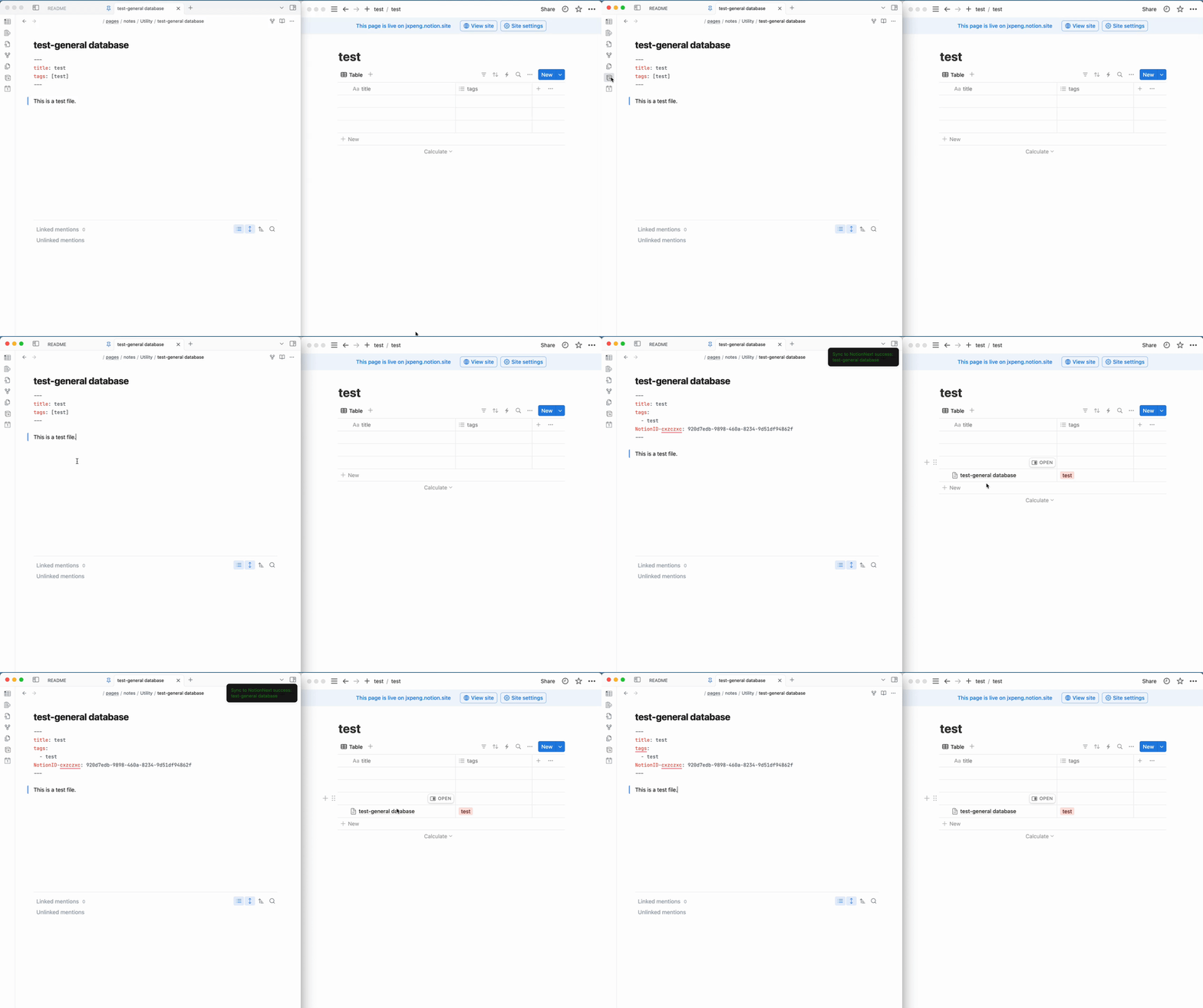
Until now, you have set up the plugin in Obsidian. You can start syncing your notes to Notion.到目前为止,您已在 Obsidian 中安装了插件。现在可以开始将笔记同步到 Notion 了。
Create a new note in Obsidian, and fill in the front matter with the properties you want to sync.在 Obsidian 中创建一个新的笔记,并在前言部分填写您想要同步的属性。
For example, we can create a test note with the following front matter:例如,我们可以创建一个具有以下前置内容的测试笔记:
---
title: test
tags: [test, web]
---

This is a test file.
After creating the note, you can click the Share to NotionNext button on the left sidebar to sync the note to Notion.创建笔记后,您可以点击左侧边栏的 Share to NotionNext 按钮将笔记同步到 Notion。
We use the following front matter for the NotionNext database:我们为 NotionNext 数据库使用以下前置内容:
---
title: test-notionnext
titleicon: 📎
date: 2023-07-23
coverurl: https://img.jxpeng.dev/2023/08/843e27a210847f05a0f7cfb121fec100.jpg
type: Post
slug: test
status: Draft
category: test
summary: this is a summary for test post
icon: fa-solid fa-camera
password: "1234"
tags:
  - test
  - web
NotionID-pengjiaxin: 8ba573de-8fdf-4681-b063-c39d26e7860e
---

this is a test file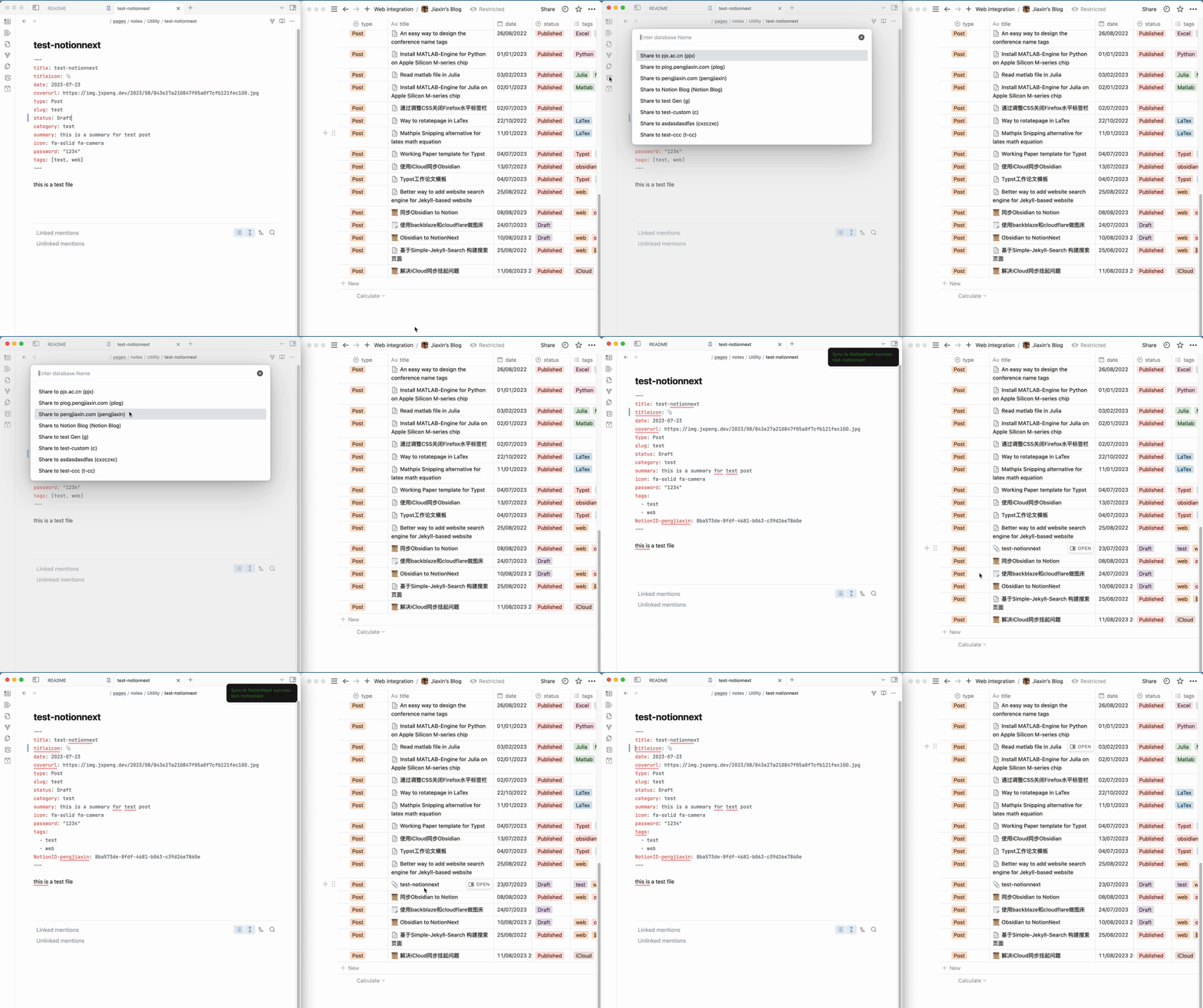
Use the previously created general database and rename title to Name and tags to Tags in Notion.使用之前创建的通用数据库,并在 Notion 中将 title 重命名为 Name ,将 tags 重命名为 Tags 。
The front matter for the custom database is as follows:自定义数据库的前置部分如下:
---
Name: test-custom
Tags:
  - test
  - web
---

This is a test file. 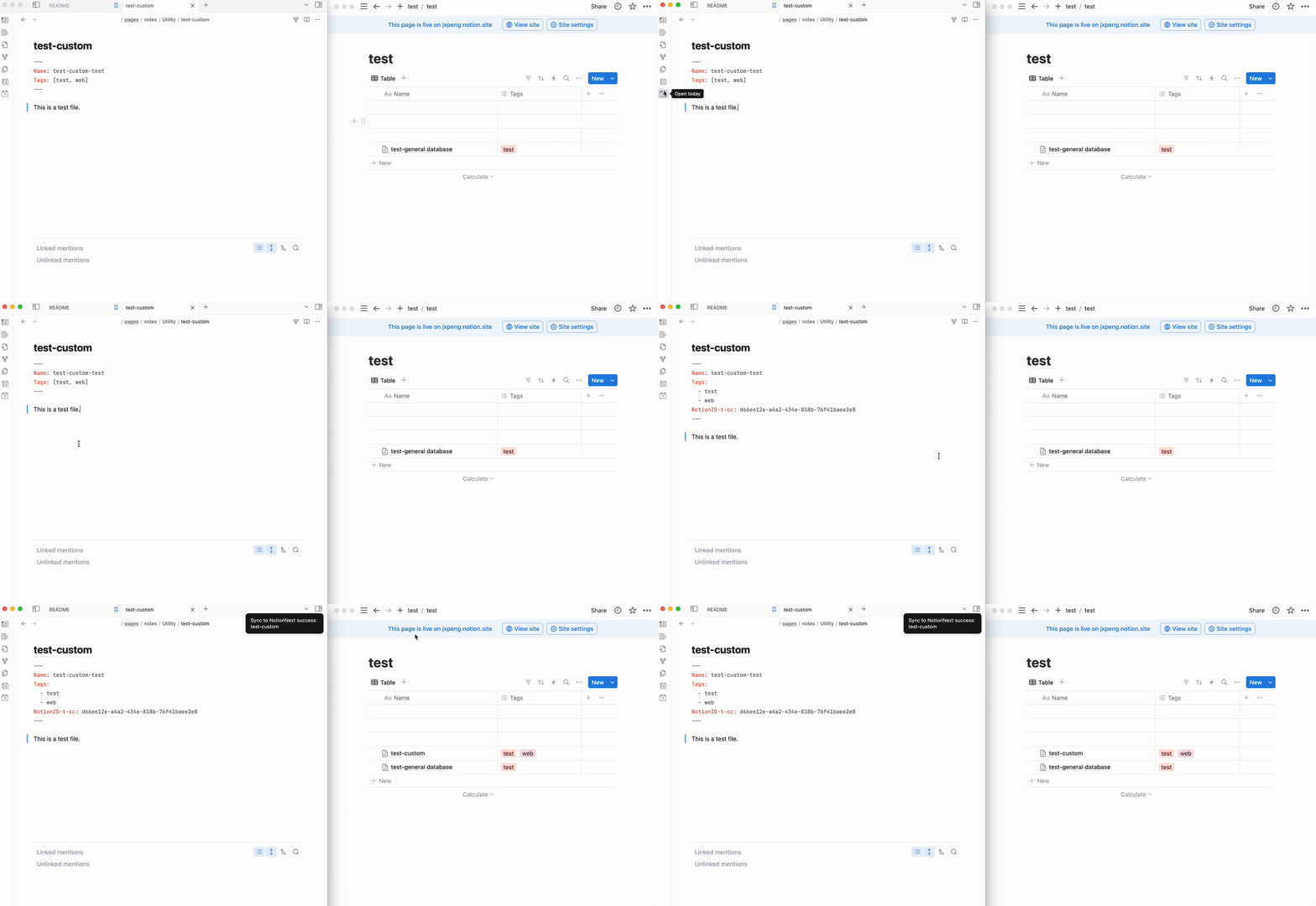
Add more property to the custom database. For example, we can add a summary and date property to the custom database.
1). Click Edit in the plugin settings.
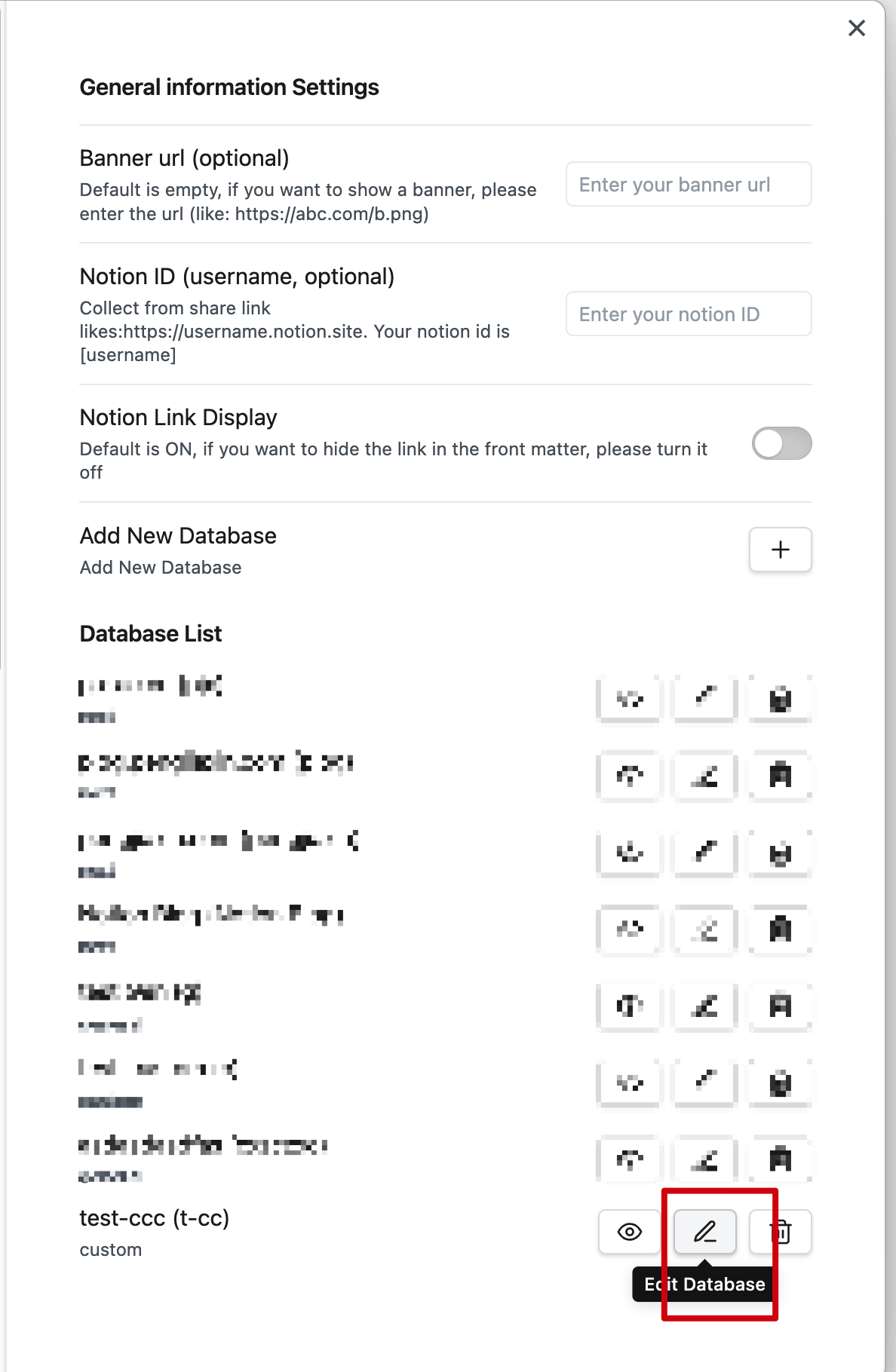
Add and add the summary and date property.在插件设置中点击 Edit 。
2). 点击 Add 并添加 summary 和 date 属性。
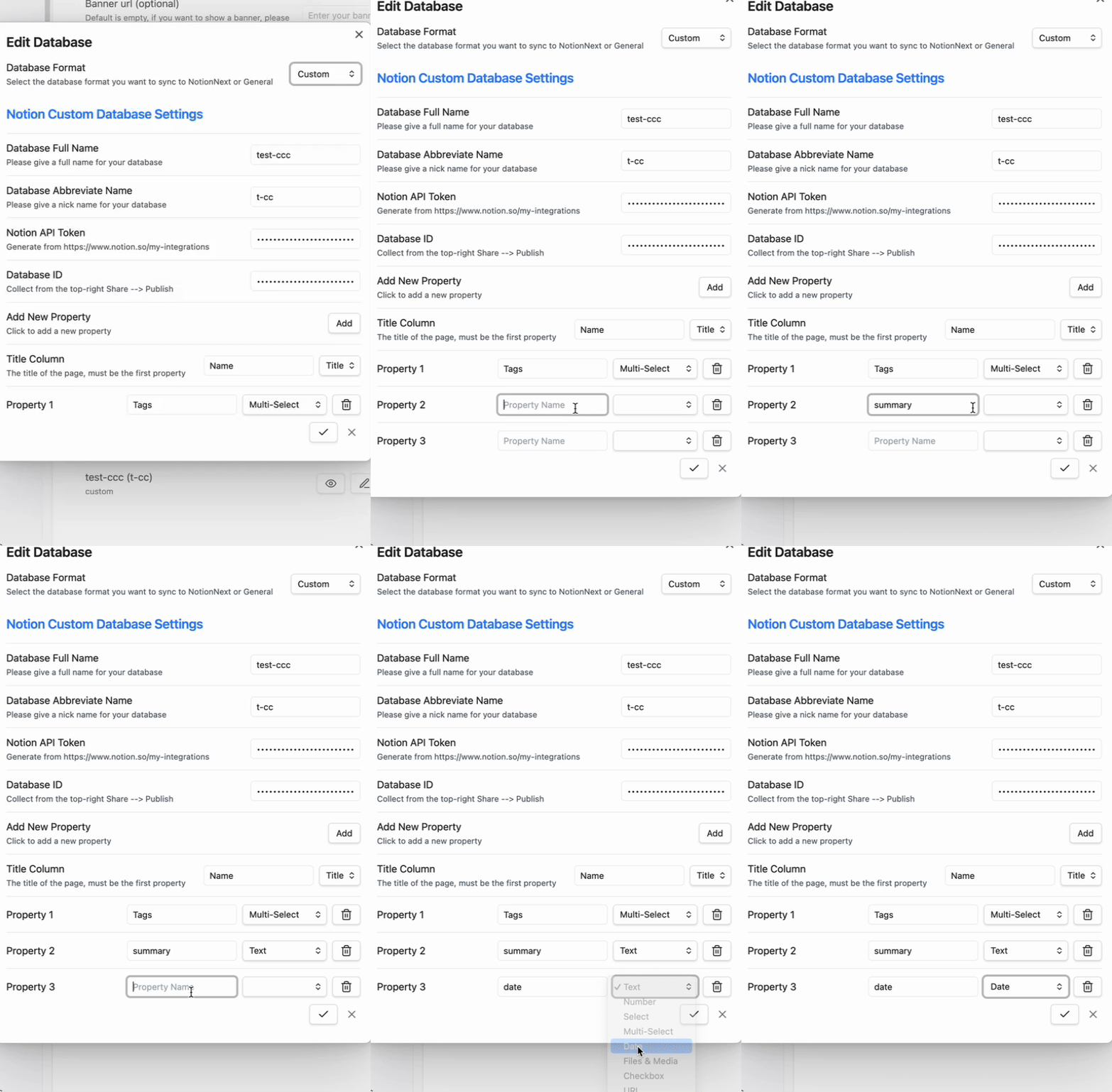
3). After adding the properties, you can see the properties in the plugin settings.
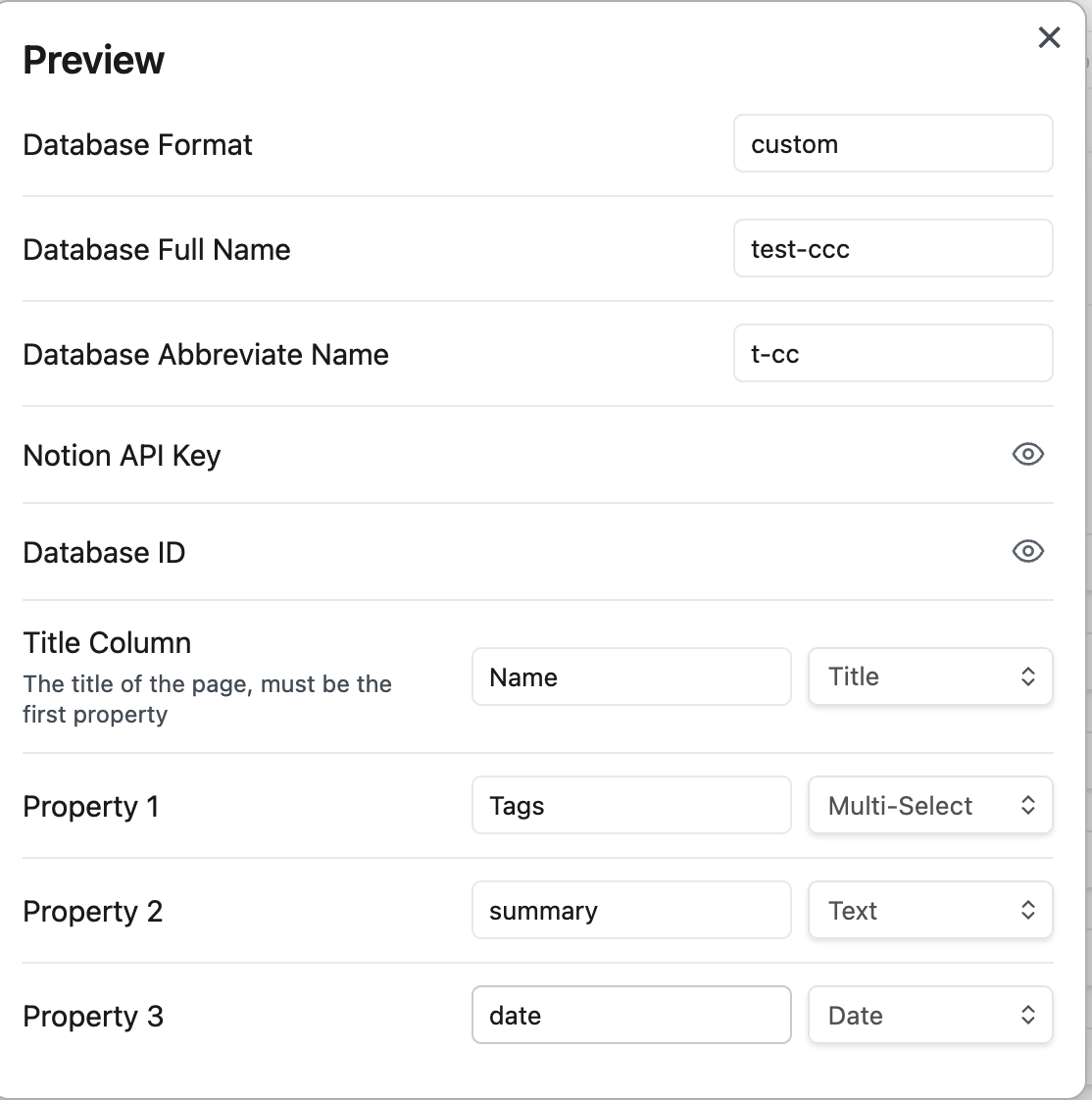
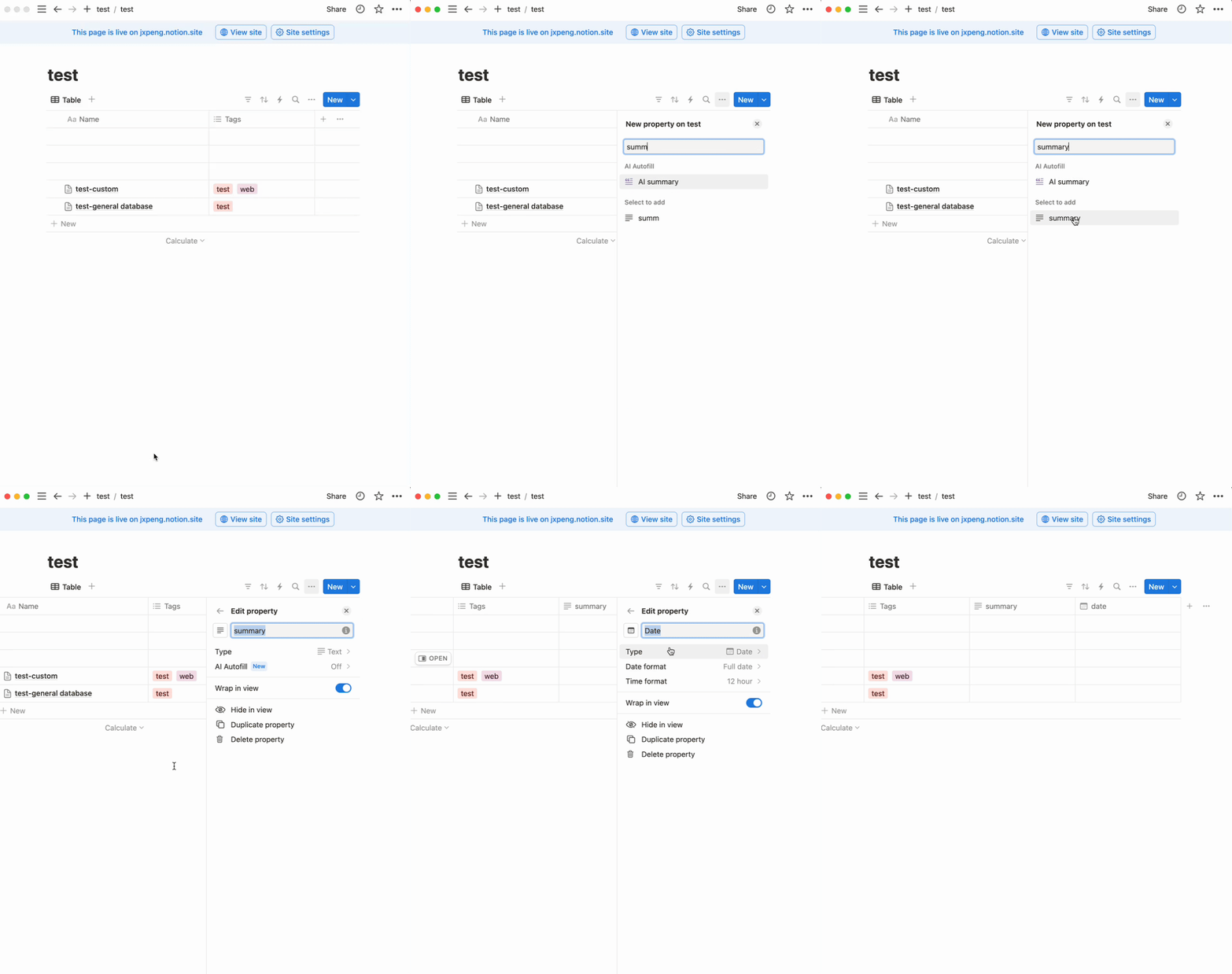
summary and date in Notion3). 添加属性后,您可以在插件设置中看到这些属性。
4). 在 Notion 中添加 summary 和 date
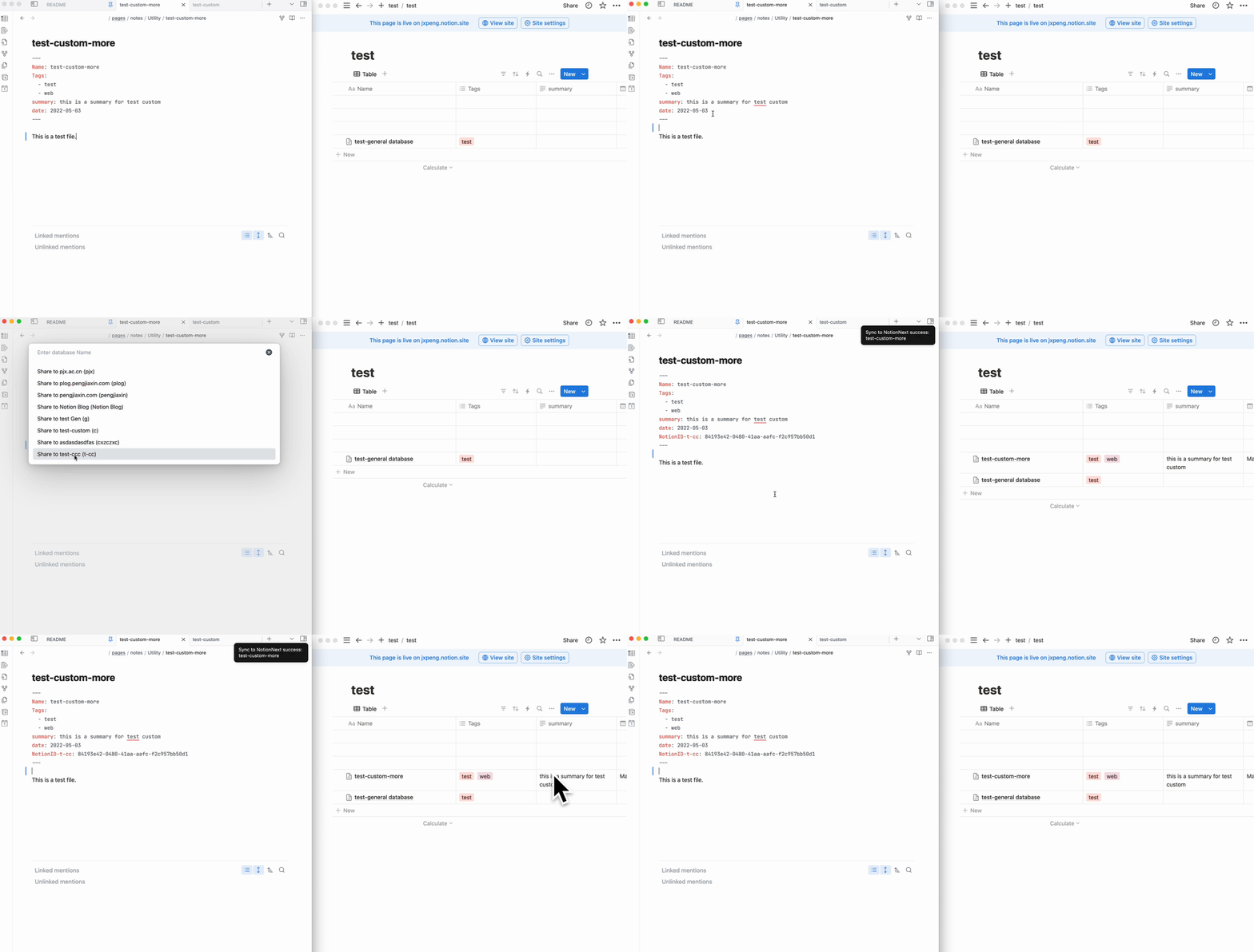
5). Create a new note with the summary and date property.5). 创建一个具有 summary 和 date 属性的新笔记。
---
Name: test-custom-more
Tags:
  - test
  - web
summary: this is a summary for test custom
date: 2022-05-03
---

This is a test file.
6). Sync the note to Notion.6). 将笔记同步到 Notion。
Thanks to the original author for developing such a useful plugin that can synchronize Obsidian to Notion. However, the original repository can only sync Name and Tag information. For those like me who use NotionNext to set up their website, this presents some limitations. Every time I import, I need to make a lot of modifications.感谢原作者开发了如此实用的插件,能够将 Obsidian 同步到 Notion。然而,原仓库只能同步名称和标签信息。对于像我这样使用 NotionNext 来搭建网站的人来说,这存在一些局限性。每次导入时,我都需要做大量的修改。
Thus, based on the original author's work, I've added a feature to match the NotionNext template. This way, you can edit directly in Obsidian and publish with a single click after organizing.因此,在原作者作品的基础上,我添加了一个功能以匹配 NotionNext 模板。这样一来,您可以在 Obsidian 中直接编辑,整理完成后只需单击一下即可发布。
Original README.md 原始README.md
Many Thanks for the original author's work. I've only made some changes to the original author's work. If you find this plugin useful, please give the original author a star.非常感谢原作者的工作。我只是对原作者的作品做了一些修改。如果您觉得这个插件有用,请给原作者点个赞。




Share of obsidian to Notion 中文文档
Sharing files from Obsidian to Notion with a single click, and Obsidian will automatically add the Notion share link只需单击一下即可从 Obsidian 分享文件到 Notion,并且 Obsidian 会自动添加 Notion 共享链接。
You are welcome to offer it a star if it can benefit you.


- support for custom page banner
- update the exsit page
- support for mult language
- support for auto copy the share link to clipboard
- support for mobile
- support tags thank for @jannikbuscha
- transfer the bi-link format like [[]] into the format that Notion supports.
Open obsidian setting -> Add plugin -> Search -> notion
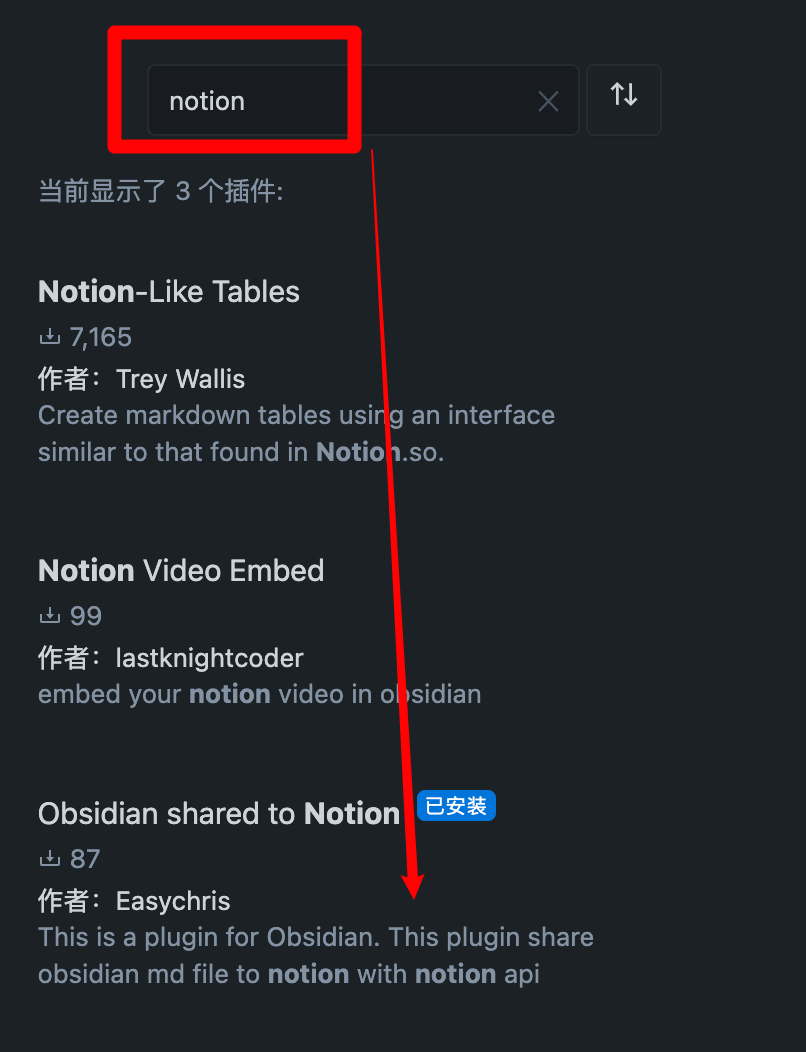
Enter BRAT into the plugin market center to find it.
Add EasyChris/obsidian-to-notion to the list of BRAT plugins that have been installed.
Return to the plugin center and turn it on.
cd YOUR_OBSIDIAN_FOLDER/.obsidian/plugins/
git clone https://github.com/EasyChris/obsidian-to-notion.git
Official reference documentation: https://developers.notion.com/docs
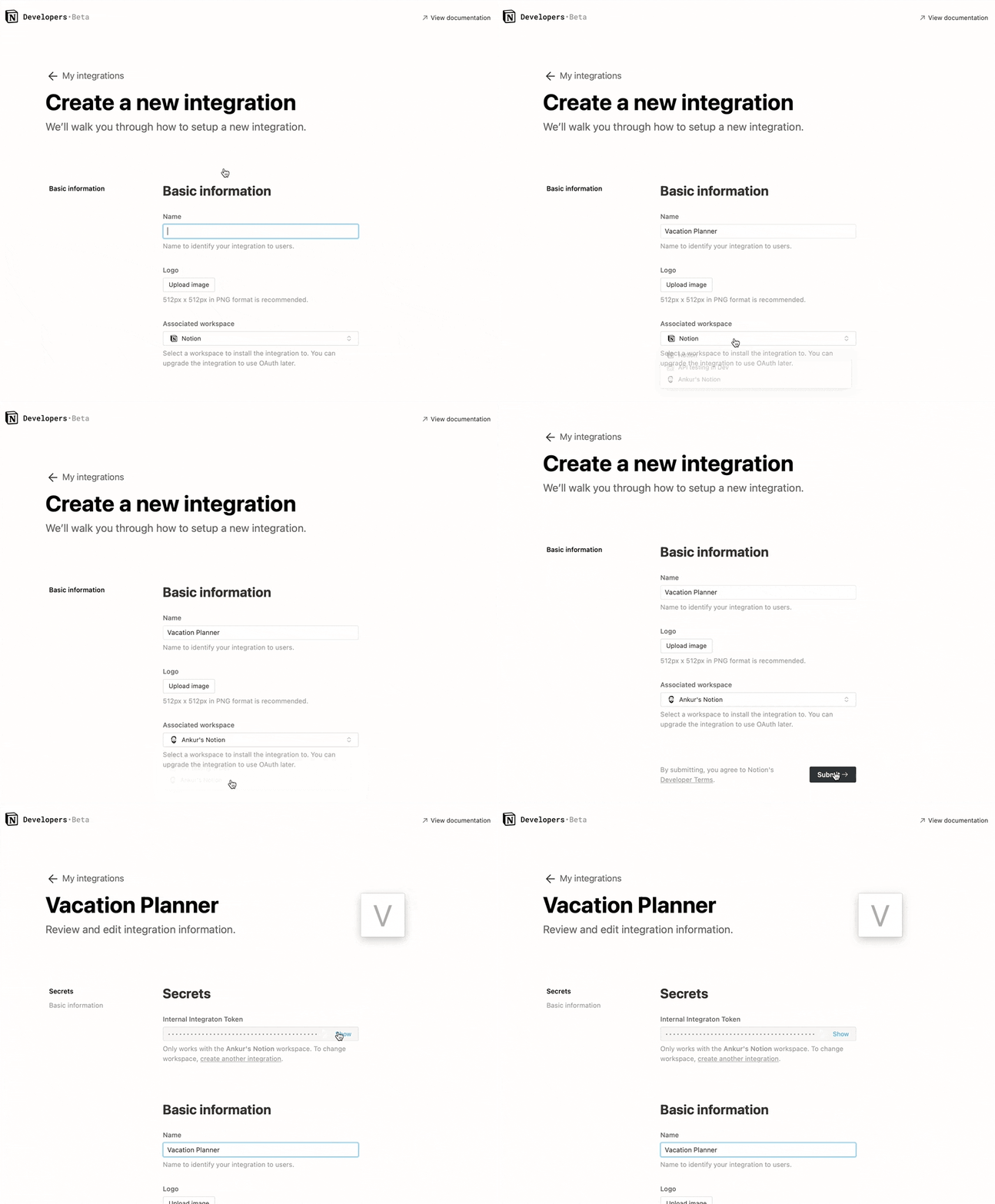
Go to https://www.notion.com/my-integrations
Once created, copy secrets toekn
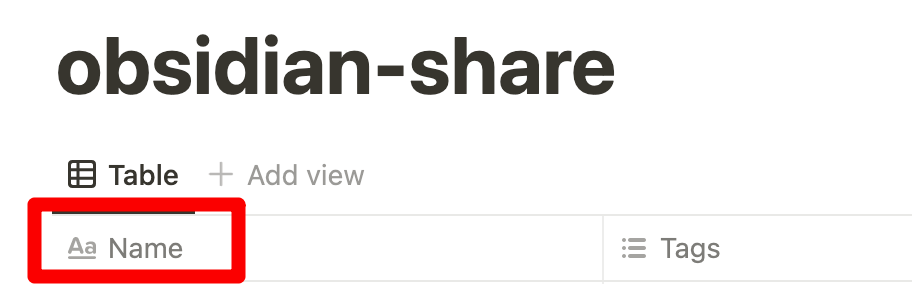
database first custom name must be "Name", otherwise sync to notion will be failed
Create a new page (with public permissions)
Create a new database in the page -> you need full page database


Add integration to your new database


https://www.notion.so/myworkspace/a8aec43384f447ed84390e8e42c2e089?v=...
                                  | --------- Database ID --------|
Fill the configuration with the NOTION_API_KEY and DATABASE_ID you got

Click the uploadCommand notion button
 A share link will be automatically generated after successful uploadCommand

Banner url must be a image url like: https://i.imgur.com/xxx.jpg If you don't want to use banner, leave it blank

Transfer the Obsidian tags to the Notion table.
It requires the column with the name 'Tags'.

Add tags to your notion page

- open plugin convert tags

- add tags in the head
---
tags: [tag1,tag2]
---

this is test tags
---
tags:
  - tag4
---

this is test tags

Thanks for @jannikbuscha contribution
Notion ID is the your notion site ID that you want to share the file to. if you don't write it, notion will share to the default link like: https://www.notion.so/myworkspace/a8aec43384f447ed84390 that visit this page need to redirect to your site url if you write the Notion ID, it will share to the page link like: https://your_user_name.notion.site/myworkspace/a8aec43384f447ed84390. The visiter don't need to redirect url.
To sync images to your oss or cos bucket, use the Obsidian Image Auto Upload Plugin.
git clone https://github.com/EasyChris/obsidian-to-notion.git
yarn install
yarn dev
node update-version.js
./release.sh
Development Process | Obsidian Plugin Development Documentation
GitHub - devbean/obsidian-wordpress: An obsidian plugin for publishing docs to WordPress.
GitHub - obsidianmd/obsidian-api
GitHub - Quorafind/Obsidian-Memos: A quick capture plugin for Obsidian, all data from your notes.
https://github.com/jannikbuscha/obsidian-to-notion
GNU GPLv3