วิธีใช้?
วิดีโอสอน
การสอน
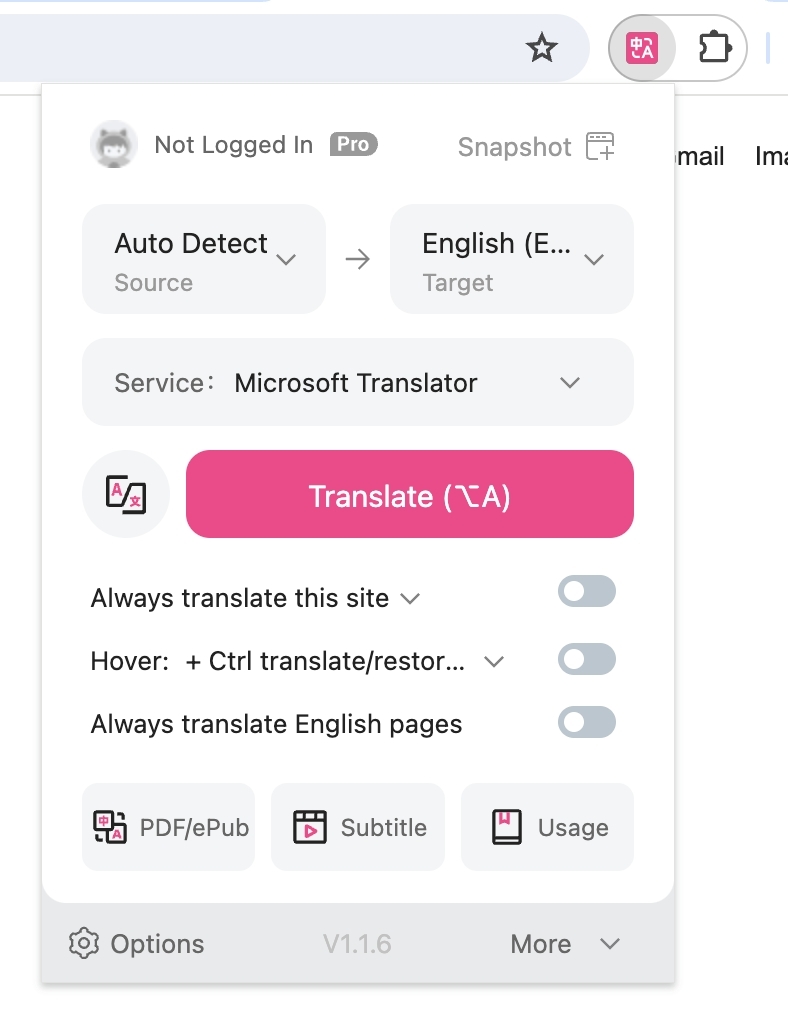
หลังจากติดตั้งปลั๊กอินแล้ว ให้วางไอคอน Immersive Translate Browser ที่มุมขวาบน จากนั้นคลิก [ไอคอนส่วนขยายการแปลที่สมจริง] จากนั้นคลิก แปลเพื่อแปล:
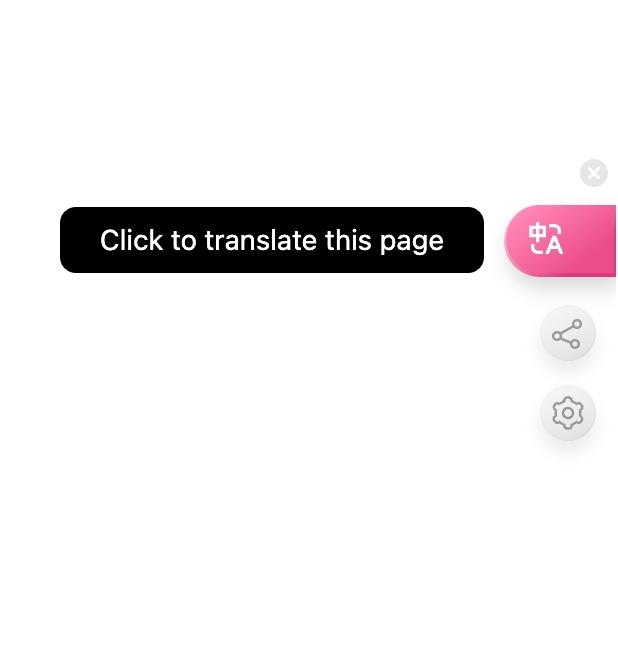
หรือเพียงคลิกที่ไอคอนทางลัด Immersive Translate ทางด้านขวาของหน้า:
หรือคุณสามารถคลิกขวาในหน้าเว็บแล้วเลือก [แปลหน้าเว็บ/แสดงข้อความต้นฉบับ] เพื่อแปล
หากคุณต้องการทางลัดคุณสามารถใช้ทางลัดสําหรับการแปลได้นี่คือทางลัดเริ่มต้น:
Alt+A: Translate/toggle the original text, click to translate, then click again to show the original text.

Alt+W: Translate the whole page instead of the default Smart Translate content area.
หากทางลัดเริ่มต้นขัดแย้งกับทางลัดซอฟต์แวร์อื่น ๆ คุณสามารถเปลี่ยนได้ใน [หน้าการตั้งค่า - การตั้งค่าอินเทอร์เฟซ - การจัดการทางลัด] ของส่วนขยาย และคุณสามารถตั้งค่าเป็น เป็นต้นAlt+QAlt+E
คําบรรยายสองภาษาของ Youtube
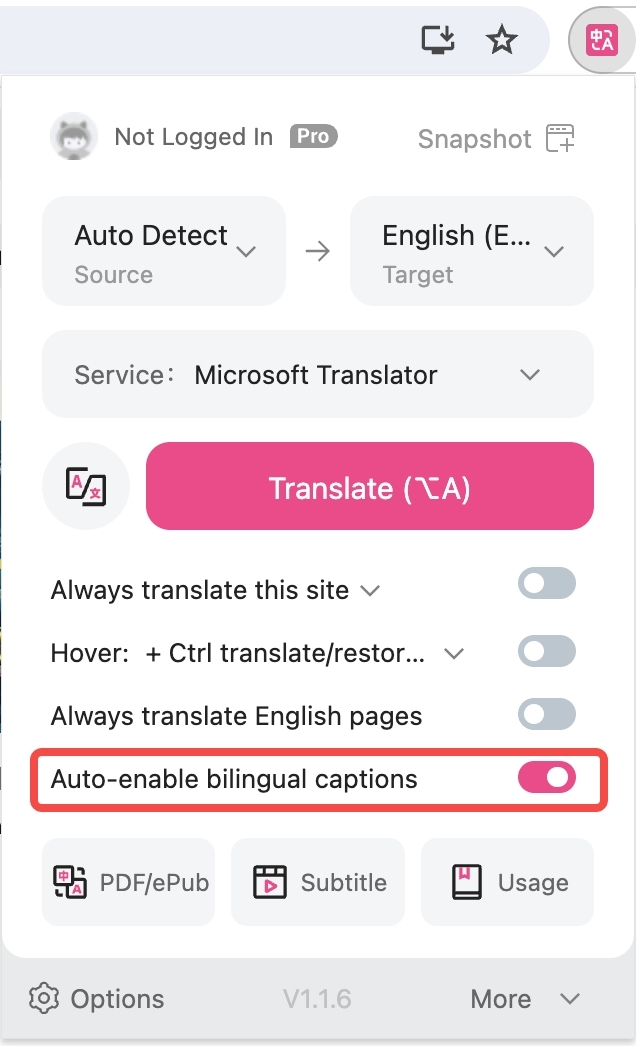
เปิด https://youtube.com/watch?v=EWX0bbGAd0k วิดีโอแบบสุ่ม คลิกแผงแปลภาษาที่สมจริง จากนั้นเลือก [เปิดคําบรรยายสองภาษาโดยอัตโนมัติ] เพื่อเปิด หากการตั้งค่าที่คุณเลือกไม่มีผลในวิดีโอ โดยปกติแล้วการรีเฟรชหน้าก็เพียงพอแล้ว
การแปลการประชุมออนไลน์
นี่เป็นคุณลักษณะอนุพันธ์ของคําบรรยายสองภาษาของ YouTube ทั้งให้การแปลคําบรรยาย และใช้ได้กับการประชุมออนไลน์บน Zoom, Google Meet และ Microsoft Teams เมื่อเปิดใช้งานการแปลคําบรรยายสองภาษาคําบรรยายจะถูกแปลโดยอัตโนมัติระหว่างการประชุมออนไลน์
คําแนะนํา: ขั้นแรก ให้เปิดใช้งานคุณสมบัติคําบรรยายที่จัดทําโดยแพลตฟอร์มการประชุมออนไลน์ จากนั้นคลิกที่แผงการแปลที่สมจริงแล้วเลือก [เปิดใช้งานคําบรรยายสองภาษาโดยอัตโนมัติ] เพื่อเปิดใช้งาน หากการตั้งค่าที่คุณเลือกไม่มีผลโดยปกติการรีเฟรชหน้าเว็บจะช่วยแก้ปัญหาได้
การอ่าน eBook Epub และการส่งออกสองภาษา
คลิกไอคอนปลั๊กอิน -> PDF/ePub (รองรับ Epub, Mobi และรูปแบบทั่วไปอื่นๆ)
กดไอคอนปลั๊กอิน -> PDF/ePub (รองรับ Epub, Mobi และรูปแบบทั่วไปอื่นๆ)
การแปลไฟล์ PDF
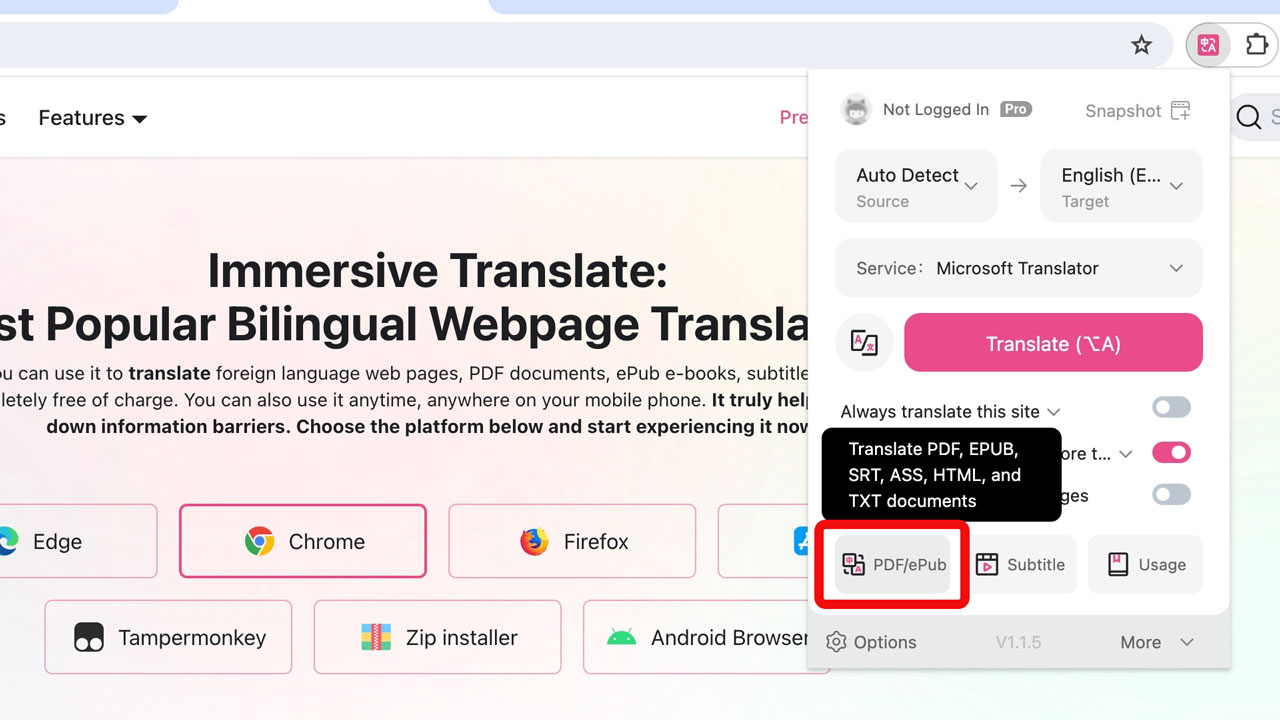
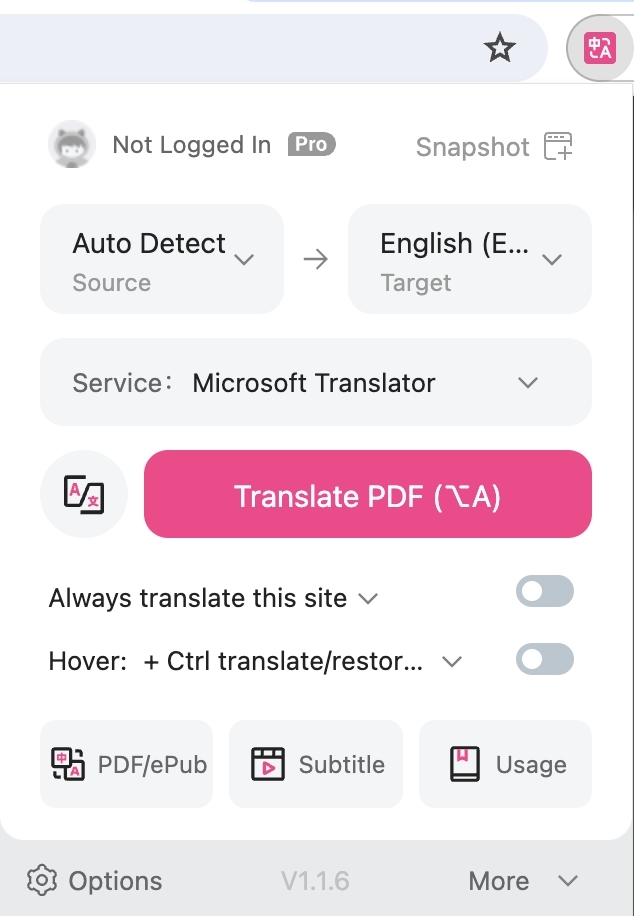
- หากเป็นไฟล์ PDF ออนไลน์ ให้เปิดในเบราว์เซอร์ คลิกที่ไอคอนที่ขยาย จากนั้นคลิกที่แปลไฟล์ ดังที่แสดงด้านล่าง
หากเป็นไฟล์ PDF ออนไลน์ ให้เปิดในเบราว์เซอร์ คลิกที่ไอคอนที่ขยาย จากนั้นคลิกที่ "แปลไฟล์" ตามที่แสดงด้านล่าง
- หากเป็นไฟล์ PDF ในเครื่อง ให้คลิกขวาที่ไอคอนของส่วนขยายโดยตรง (หรือคลิกซ้ายที่ไอคอนของส่วนขยาย จากนั้นคลิกที่ "เพิ่มเติม" และคลิกที่ "แปลไฟล์ PDF ในเครื่อง") เข้าสู่หน้า จากนั้นคลิกที่มุมขวาบนของหน้าเพื่ออัปโหลดไฟล์ PDF ของคุณ
หากเป็นไฟล์ PDF บนเครื่อง ให้คลิกขวาที่ไอคอนของส่วนขยายโดยตรง (หรือคลิกซ้ายที่ไอคอนของส่วนขยาย จากนั้นคลิกที่ "เพิ่มเติม" และคลิกที่ "แปลไฟล์ PDF ในเครื่อง") เข้าสู่หน้า จากนั้นคลิกที่มุมขวาบนของหน้าเพื่ออัปโหลดไฟล์ PDF ของคุณ
หน้าการตั้งค่าปลั๊กอิน
คลิกที่ไอคอนส่วนขยายที่มุมขวาบนของเบราว์เซอร์ แล้วคลิกที่ [การตั้งค่า] เพื่อเข้าสู่หน้าการตั้งค่าของส่วนขยาย
ในหน้าการตั้งค่าเราสามารถสร้างชุดการตั้งค่าส่วนบุคคลได้
บนหน้าการตั้งค่าเราสามารถสร้างชุดการตั้งค่าส่วนบุคคลได้
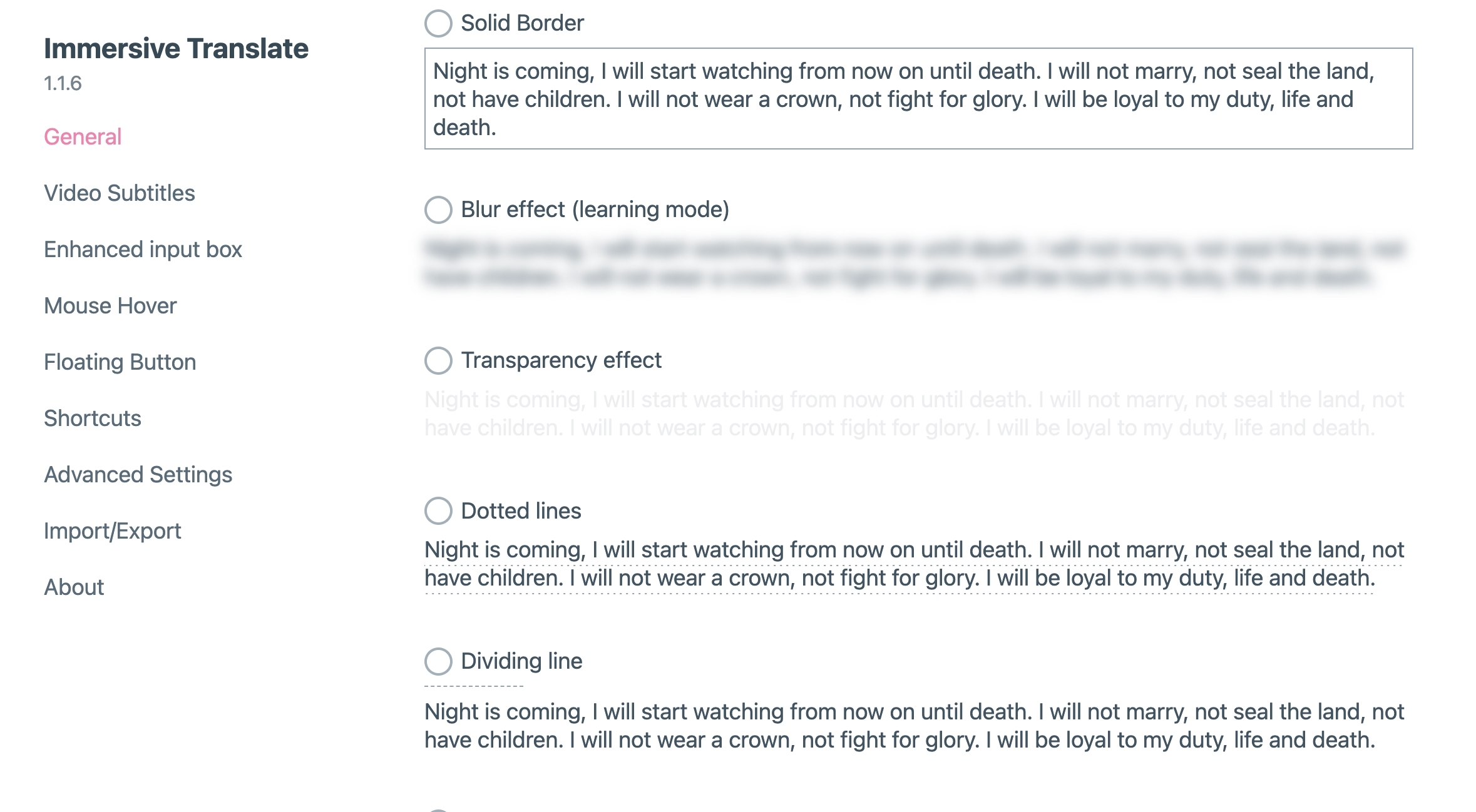
ตัวอย่างเช่น ใน [การตั้งค่าอินเทอร์เฟซ] เราสามารถแก้ไขรูปแบบการแปล:
ตัวอย่างเช่น บน [การตั้งค่าอินเทอร์เฟซ] เราสามารถแก้ไขรูปแบบการแปล:
การแปลเมาส์โฮเวอร์
การแช่รองรับการแปลย่อหน้าอัตโนมัติโดยวางเมาส์เหนือย่อหน้า แต่ไม่ได้เปิดใช้งานโดยค่าเริ่มต้น คุณต้องเปิดใช้งานในแผงควบคุม:
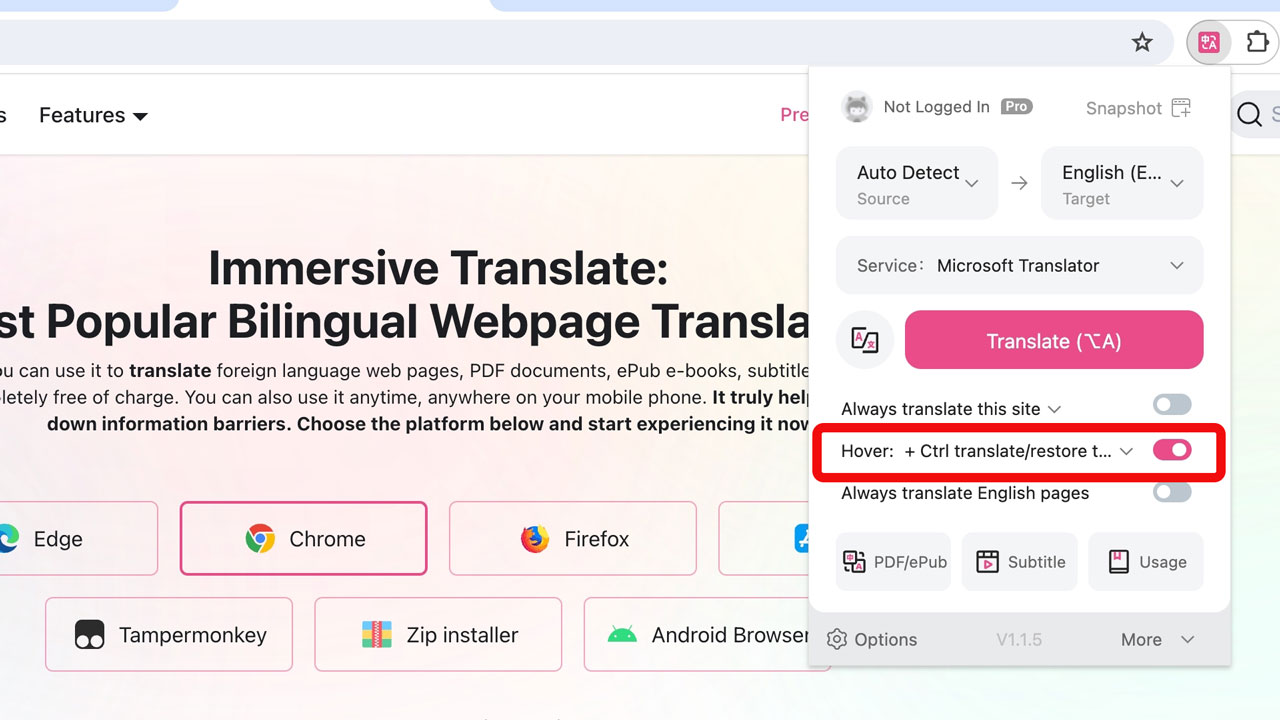
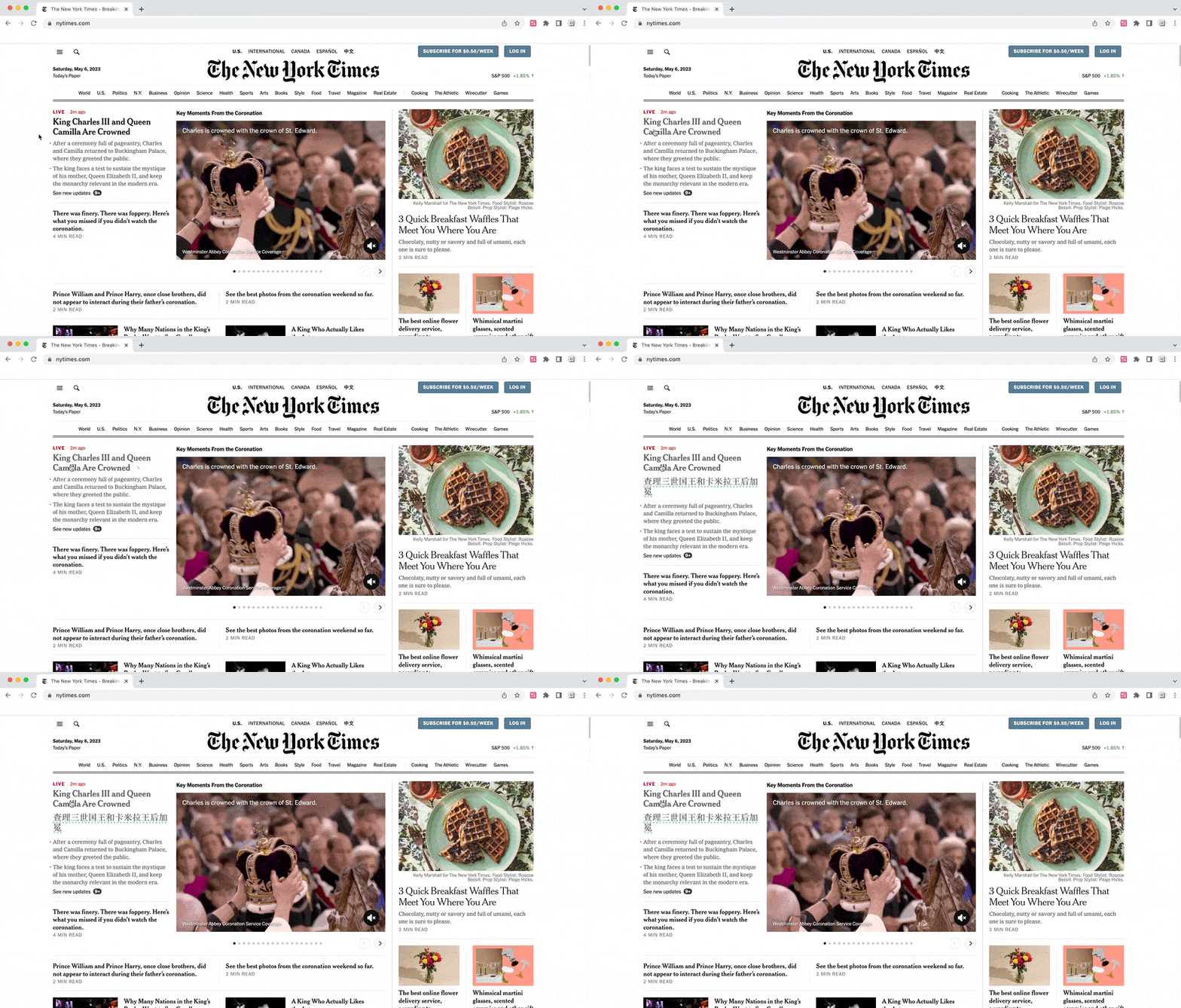
Once enabled, you can press the key while hovering over a paragraph to see the bilingual translation:Shift
หลังจากเปิดใช้งานแล้วคุณสามารถกดปุ่มระหว่างที่นำเสนอเมาส์เหนือประโยคเพื่อดูการแปลทั้งสองภาษา: Shift
Input Box Enhancement
การปรับปรุงกล่องข้อความ
You can translate the text you want in any text input box, check out the video demo at:
Manga Translation (Beta)
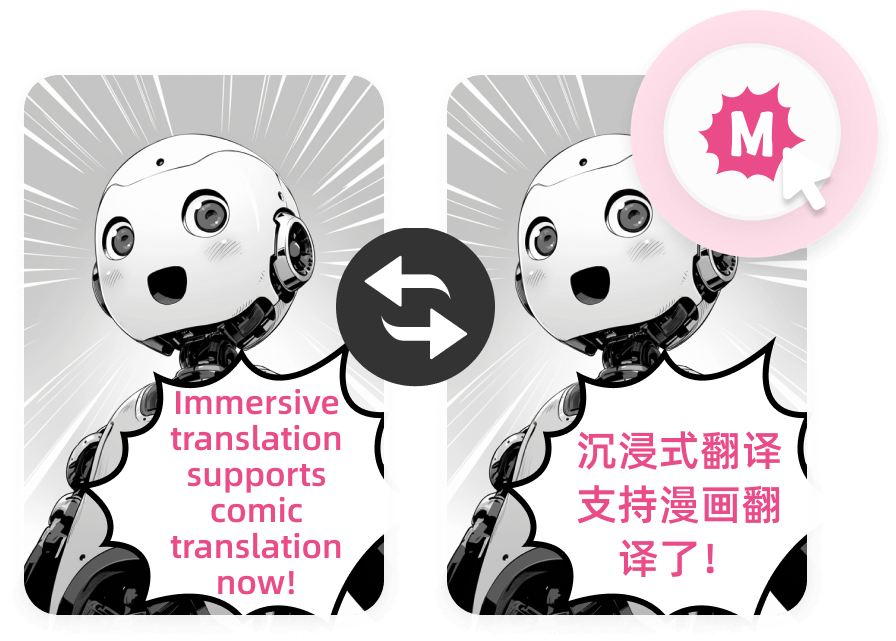
Manga translation is available only for Pro members. Pro users can customize this feature in [Settings] -> [Manga/Image].
Instructions: On supported manga websites, a manga translation button will appear below the webpage quick translation floating ball. Click to enable manga translation. The following websites are currently supported for manga translation: Pixiv, MANGA Plus by SHUEISHA, Zebrack by SHUEISHA, ReadComicOnline, ReadComic, COMIC FUZ, MangaDex, Yamibo, ShonenJumpPlus, Heros Web, Comic Days, Comic Top, ComicWalker, Web Ace, MANGABUDDY, E-Hentai, nHentai, Antbyw, idmzj, Jmanga, Twitter Comic, Wnacg, MangaZ, PASH UP, COLAMANGA, GANGAN ONLINE, BATOTO, Asura Scans, All Manga, Manhwaclan, CoroCoro, Yymanhua, Manhwatop, Palcy, Comic-Trail, Mangaflame, Templetoons, Batocomic, Comic-action, Tencent Comics, Mangajikan, komiku, KL, Mangakoinu, Sololevelingmangafree
Request support for more websites or provide feedback
Image Translation (Beta)
Right-click on any image and select "Translate Image" to perform translation. Additionally, if you have set the mouse hover paragraph translation shortcut key, you can directly use the hover shortcut key to translate images. For convenience, you can also enable the mouse hover quick translation button below. Once enabled, hovering over any image will display the "Quick Translate" button, which you can click to translate the image. More customization options can be found in [Settings] -> [Manga/Image].
Free Version Image Translation
This is processed directly on the browser side with text recognition, and due to browser technology limitations, it is currently supported only by Chrome and Edge. The recognizable languages are limited to English and some Latin-based languages.
Pro Version Image Translation
This is processed on the server side with text recognition. It is available for browsers that support immersive translation and supports most common languages. Currently, it is available only to Pro Members.
Translation of subtitle files
Immersive supports , and other formats of subtitle file translation, click on the Immersive Translate extension icon, click [More], [Subtitle File Translation], you can access it, and you can export bilingual subtitles after translation..srt.ass
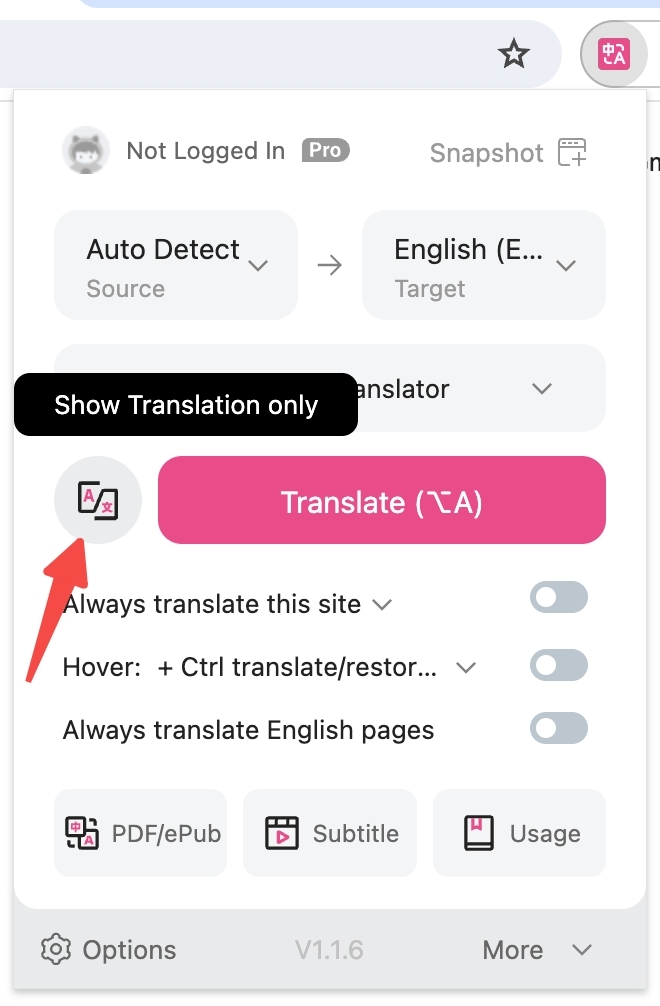
Show Translations Only
Immersive Translate defaults to bilingual display mode, which is suitable for use in the vast majority of cases.However, we also understand that some users need to hide the original text in certain scenarios, in which case you can click on the Immersive Translate icon, and select [Switch to Translation Only Mode].
Tampermonkey Settings Page
If you are using Tampermonkey, then you need to go to the Online Web Version Settings Page to set some advanced options, click the [Settings] link in the floating window to go to that page, or just click here.
Tips: Tampermonkey's floating window can be dragged to any position.
Contact Us
Welcome to Immersive Translate, if you have any questions, you can contact the development team at: