标题: 我如何使用克劳德代码(+ 我的最佳技巧)
Title: How I use Claude Code (+ my best tips)
URL 来源:https://www.builder.io/blog/claude-code
URL Source: https://www.builder.io/blog/claude-code
Markdown 内容:我成为 Cursor 的超级用户已经有一年多了。
Markdown Content:
I've been a Cursor power user for over a year.
我撰写了《光标技巧指南》(https://www.builder.io/blog/cursor-tips),每周都有成千上万的开发者参考这篇指南。
I wrote [the guide to Cursor tips](https://www.builder.io/blog/cursor-tips) that thousands of developers reference every week.
我深入研究了 Cursor 的每项强大功能和代理模式的最佳实践。
I've gone deep down the rabbit hole on every Cursor power feature and agent mode best practice.
而现在,我为了克劳德代码(Claude Code)放弃了这一切。
And I've abandoned it all for Claude Code.
几周以来,我完全生活在克劳德代码中,而不是 Cursor 的代理中。
For weeks now, I've been living entirely in Claude Code instead of Cursor's agents.
说实话,我再也回不去了。
And honestly, there's no going back.
以下是我使用 Claude Code 的方法以及我认为最有效的技巧
Here's how I use Claude Code and my best tips for getting the most out of it
使用 VS Code 扩展程序 -------------------------
Use the VS Code extension
-------------------------
首先:安装 Claude Code 扩展。
First things first: install the Claude Code extension.
它与 VS Code、Cursor 兼容,可能也支持 Windsurf。
It works with VS Code, Cursor, and probably Windsurf too.
别指望它会有多火爆,它基本上只是一个启动器。
Don't expect fireworks, it's basically just a launcher.
但它让打开克劳德代码变得非常简单,而且你可以在集成开发环境的不同窗格中并行运行多个实例,只要它们在代码库的不同部分工作即可。
But it makes opening Claude Code dead simple, and you can run multiple instances in parallel in different panes in your IDE as long as they're working on different parts of your codebase.
我仍然使用 Cursor 快速完成 Command+K 和选项卡补全。
I still use Cursor for quick Command+K completions and tab completions.
但代理侧边栏呢?
But the agent sidebar?
我只有在克劳德关闭时才会碰它。
I only touch it when Claude is down.
奇怪的是我的工作流程发生了变化。
The weird thing is how my workflow has evolved.
在主编辑器中编码时,我曾将 Claude 作为一个小边栏。
I used to have Claude as a small sidebar while coding in the main editor.
现在我默认使用 Claude,仅在审查更改时查看代码。
Now I default to Claude first and only peek at code when reviewing changes.
它已经成为我的主要界面,而不是次要界面。
It's become my primary interface, not my secondary one.
终端用户界面很不错 -----------------------
The terminal UI is good
-----------------------
是啊,我也曾怀疑过。
Yeah, I was skeptical too.
基于聊天的代码编辑终端界面?
A terminal interface for chat-based code editing?
听起来像是一种倒退。
Sounds like a step backward.
但人类学在这方面做得还不错。
But Anthropic did a decent job with it.
您可以轻松地通过@标签标记文件,使用斜杠命令(非常实用),并精确选择要包含的上下文。
You can @-tag files easily, use slash commands (which are helpful), and choose exactly what context to include.
我通常使用 Opus,除非它出现问题,否则我会切换到 Sonnet。
I mostly stick with Opus unless it's having one of its moments, then I switch to Sonnet.
大多数人可能只需使用默认设置--它会使用 Opus 直到你的使用率达到 50%,然后再切换到 Sonnet 以提高成本效益。
Most people should probably just use the defaults - it'll use Opus until you hit 50% usage, then switch to Sonnet for cost efficiency.
建议:经常使用 `/clear`。
Pro tip: use `/clear` often.
每次开始新任务时,请清空聊天记录。
Every time you start something new, clear the chat.
你不需要这些历史数据占用你的代币,更不需要 Claude 运行压缩调用来总结旧对话。
You don't need all that history eating your tokens, and you definitely don't need Claude running compaction calls to summarize old conversations.
只需将其清除,然后继续前进。
Just clear it and move on.
向上箭头可让您回溯查看过去的聊天记录,甚至包括之前会话中的内容。
The up arrow lets you navigate back through past chats, even from previous sessions.
当你需要参考昨天的内容时,这个功能非常方便。
Handy when you need to reference something from yesterday.
权限系统会让你发疯 -------------------------------------------
The permission system will drive you insane
-------------------------------------------
克劳德代码最令人讨厌的地方就在于:它做任何事情都要询问权限。
Here's the most annoying thing about Claude Code: it asks permission for everything.
你输入一个提示,它就开始工作 你去查看 Slack,五分钟后回来,它就坐在那里问你 "Can I edit this file?"
You type a prompt, it starts working, you go check Slack, come back five minutes later, and it's just sitting there asking "Can I edit this file?"
是的,你可以编辑文件。
Yes, you can edit files.
这才是重点
That's literally the point.
运行基本命令也一样。
Same with running basic commands.
\Can I run lint?可以
"Can I run lint?" YES.
天哪,就是 "是"。
My god, just yes.
不过还是有解决办法的。
There's a solution though.
每次打开克劳德代码,我都会按下 Command+C 并运行 `claude --dangerously-skip-permissions` 命令。
Every time I open Claude Code, I hit Command+C and run `claude --dangerously-skip-permissions`.
这并不像听起来那么危险--可以把它想象成光标的老 "yolo "模式。
It's not as dangerous as it sounds — think of it as Cursor's old yolo mode.
理论上,叛逃特工会运行破坏性命令吗?
Could a rogue agent theoretically run a destructive command?
当然可以 Sure.
我在几周的使用中见过这种情况吗?
Have I seen it happen in weeks of usage?
从来没有。 Never.
风险承受能力由你决定,但我晚上睡得很好。
Your call on the risk tolerance, but I sleep fine at night.
GitHub 集成其实很有用 -----------------------------------------
The GitHub integration is actually useful
-----------------------------------------
更酷的斜杠命令之一是 `/install-github-app`。
One of the cooler slash commands is `/install-github-app`.
运行后,Claude 将自动审核您的 PR。
After you run it, Claude will automatically reviews your PRs.
这实际上非常有用,因为随着您使用更多 AI 工具,您的 PR 数量会增加。
This is actually useful because as you use more AI tools, your PR volume increases.
说实话呢? And honestly?
克劳德经常能发现人类忽略的错误。
Claude often finds bugs that humans miss.
人类对变量名吹毛求疵。
Humans nitpick variable names.
克劳德能发现实际的逻辑错误和安全问题。
Claude finds actual logic errors and security issues.
关键在于定制审查提示。
The key is customizing the review prompt.
在开箱即用的情况下,它太啰嗦了,对每件小事都要评头论足。
Out of the box, it's way too verbose and comments on every little thing.
克劳德将添加一个`claude-code-review.yml`文件,其中已包含一个提示。
Claude will add a `claude-code-review.yml` file with a prompt already in it.
下面是我使用的替代方案:
Here's what I use instead:
```# claude-code-review.yml 直接提示:| 请审核此拉取请求并查找 bug 和安全问题。
```
# claude-code-review.yml
direct_prompt: |
Please review this pull request and look for bugs and security issues.
只报告您发现的错误和潜在漏洞。
Only report on bugs and potential vulnerabilities you find.
简明扼要。 Be concise.
```
我们最初发现这个工具的问题在于它非常啰嗦。
The original issue we found with this tool is it was really verbose.
它会对各种细微且不重要的细节进行评论,并在每个拉取请求上写一篇长篇大论。
It would comment on all kinds of nuanced, unimportant things and write a whole essay on every PR.
我们真正最关心的是漏洞和潜在漏洞。
What we really care about most is bugs and potential vulnerabilities.
因此,我们要简明扼要地告诉它。
So we tell it exactly that, and to be concise.
它还能做其他一些很酷的事情,比如从 GitHub 提交请求中提取评论并进行回复,或者直接审查提交请求。
There's other cool stuff it can do too, like pull comments from a GitHub pull request and address them, or review a pull request directly.
您需要了解的怪癖 ---------------------------
The quirks you need to know
---------------------------
因为是终端界面,所以有一些不明显的行为:
Since it's a terminal interface, there are some non-obvious behaviors:
* 默认情况下,Shift+Enter** 对新行不起作用。
* **Shift+Enter** doesn't work by default for new lines.
只要告诉克劳德用 `/terminal-setup`设置终端,它就会帮你解决这个问题。
Just tell Claude to set up your terminal with `/terminal-setup` and it'll fix it for you.
* **拖放文件**时,通常会在新标签页中打开,类似于 Cursor 或 VS Code。
* **Dragging files in** normally opens them in a new tab like in Cursor or VS Code.
拖动时按住 Shift 键,以便在克劳德中正确引用。
Hold Shift while dragging to reference them properly in Claude.
* 使用 Command+V 无法从剪贴板粘贴图片**。
* **Pasting images** from clipboard doesn't work with Command+V.
请使用 Control+V 代替。 Use Control+V instead.
我花了很长时间才弄明白。
Took me forever to figure that out.
* 停止克劳德**不是 Control+C(只是完全退出)。
* **Stopping Claude** isn't Control+C (that just exits entirely).
用 "逃离 "来阻止克劳德。
Use Escape to actually stop Claude.
** 跳转到以前的信息**:Escape 两次可显示所有可跳回的前几条信息。
* **Jumping to previous messages**: Escape twice shows a list of all previous messages you can jump back to.
如果你喜欢,还可以使用 Vim 模式。
There's also a Vim mode if you're into that.
我没有。 I'm not.
克劳德代码能更好地处理大型代码库 ------------------------------------------
Claude Code handles large codebases better
------------------------------------------
真正的区别在于:我们在 Builder 有一个长达 18000 行的 React 组件。
Here's the real difference: we have a React component at Builder that's 18,000 lines long.
(除了克劳德代码(Claude Code),没有人工智能代理成功更新过这个文件。
(Don't @ me about code organization, I know.) No AI agent has ever successfully updated this file except Claude Code.
在使用 Cursor 时,我仍然发现了很多小问题。
When using Cursor, I still find a lot of little hiccups.
它很难解决补丁问题,不得不经常重写文件,更新超大文件时也非常吃力。
It has trouble resolving patches, has to rewrite files often, and really struggles to update extremely large files.
这不仅仅是文件大小的问题,Claude Code 在处理复杂任务时表现出色。
This isn't just about file size, Claude Code works great with complex tasks.
我发现它很少卡住(我甚至不确定自己是否注意到了)。
I find it gets stuck incredibly rarely (I'm not even sure if I've noticed it at all).
而使用 Cursor 时,我觉得我必须要更多地照看它,当它卡住时,我就必须让它停下来,然后意识到也许这不是一项好任务。
With Cursor, I feel like I have to babysit it more, and when it gets stuck, I have to stop it and realize maybe this wasn't a good task to ask.
Claude 在处理大型代码库时表现尤为出色,能够高效搜索模式、理解代码不同部分之间的关联、组件、共享状态等内容。
Claude is also exceptionally good at navigating large codebases, searching for patterns, understanding relationships between different parts of the code, components, shared state, stuff like that.
老实说,这有点不可思议。
It's honestly kind of incredible.
从经济角度来看,这很有道理 ------------------------
The economics make sense
------------------------
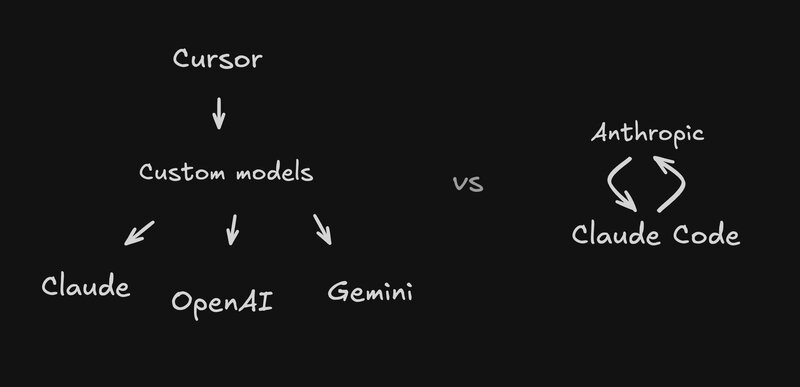
想想吧:Cursor 建立了一个支持多种模型的通用代理。
Think about it: Cursor built a general-purpose agent that supports multiple models.
他们需要一个完整的团队来完成这项工作,而且他们还要训练定制模型,此外,他们还需要在向 Anthropic 公司支付基础模型费用的基础上赚取利润。
They need a whole team for that, plus they trained custom models, plus they need to make a profit on top of paying Anthropic for the underlying models.
Anthropic 确切地制造出了最好的编码模型,而他们制造的 Claude Code 也是最擅长使用这些模型的。
Anthropic definitively makes the best coding models, and they make Claude Code the best at using those models.
当他们遇到克劳德代码的挑战时,他们就会去把模型做得更好。
When they hit challenges with Claude Code, they go and make the model better.

他们对模型的工作原理、训练方法和使用方法了如指掌。
They know everything about how the model works, how it's trained, and how to use it in depth.
他们会继续训练模型,使其能够很好地满足克劳德代码的需要。
They continue to train the model to work well with what they need for Claude Code.
这还意味着 Anthropic 能够以最低的价格为您提供最大的价值,因为您只需关注支付给他们的费用。
It also means Anthropic can give you the most possible value for the least possible price because you only have to worry about paying them.
他们可以在最大限度地使用 Opus 等机型方面展开竞争,而不会出现像光标那样的情况,因为光标也要赚钱。
They can compete on giving you maximum access to models like Opus without situations like Cursor has, where Cursor has to make money too.
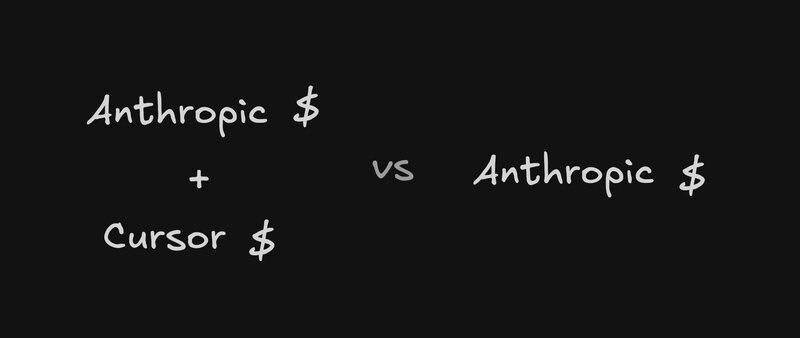
这就像直接从制造商处购买,而非通过经销商。
It's like buying direct from the manufacturer instead of through a reseller.
当然更好。
Of course it's better.
定价合理 -------------------------
The pricing is reasonable
-------------------------
我支付的最大计划是 100 美元/月。
I pay for the max plan at $100/month.
如果你认为一个全天候工作的聪明绝顶的编码员不值 100 美元/月,那你就得看看你自己的时间是怎么收费的。
If you think a shockingly intelligent coder working 24/7 isn't worth $100/month, you need to look at what you charge for your own time.
看看人工每小时的工程成本,无论你在世界的哪个角落,都要比这高出几个数量级。
Look at what a human costs per hour for engineering, regardless of where you look in the world, it's orders of magnitude more than that.
任何经理在计算时都会发现,即使是在可能的最高定价层级,这也是非常值得的。
Any manager doing that math will see it's overwhelmingly worth it, even at the highest possible pricing tiers.
队列系统非常方便 ---------------------------------
The queuing system is handy dandy
---------------------------------
我离不开的一项功能是:信息队列。
One feature I can't live without: message queuing.
你可以输入多个提示,Claude 会智能地处理它们。
You can type multiple prompts and Claude will work through them intelligently.
我以前的做法是创建一个记事本,然后开始起草我想做的其他提示。
What I used to do is create a notepad and start drafting other prompts that I wanted to do.
当我看到一个提示完成后,我就会粘贴下一个提示,然后按回车键。
Then when I saw one was done, I'd go paste the next one and hit enter.
我用 Cursor 时就是这么做的,这真的很烦人,因为我通常会忙里忙外,回复 Slack 消息、回复电子邮件、做其他事情,然后回来看到代理已经闲置了不知多久。
That's what I did with Cursor, which is really annoying because I'll usually go about my day, answer Slack messages, answer email, do something else, and come back to see the agent's been idle for who knows how long.
现在我只需将所有内容排队:“添加更多评论”,“实际上也……”,“还有……也。”克劳德真的很聪明,知道什么时候应该实际运行这些操作。
Now I just queue everything up: "Add more comments," "Actually also …," "And … too." Claude is really smart about knowing when it should actually run those things.
如果它需要你的反馈,就不会自动运行队列中的信息。
If it needs feedback from you, it's not going to automatically run the queued messages.
这是个相当智能的系统,但当它发现某些问题时,就会在有意义的时候开始解决它们。
It's a pretty smart system, but when it's wrapped up something, it'll start addressing them when it makes sense.
你可以先把很多事情排队处理,然后继续忙自己的事情,很多情况下,等你回来时会发现大量工作已经以高效且合理的方式完成。
You can queue up a lot, go about your day, and in a lot of cases just come back to a ton of work done in a good and smart way.
但要不时检查,因为它可能需要你的输入。
But check it from time to time because it might need your input.
自定义功能相当深入 ----------------------------------
The customization goes pretty deep
----------------------------------
克劳德代码支持自定义钩子、斜线命令和特定项目配置。
Claude Code supports custom hooks, slash commands, and project-specific configuration.
最酷的是什么? The cool part?
你可以让克劳德为你制作这些东西。
You can have Claude build these for you.
我让克劳德添加了一些默认钩子、命令和设置。
I asked Claude to add a couple default hooks, commands, and settings.
它分析了我的项目并生成了一份可轻松编辑的配置文件,其中有几个值得注意的亮点:
It looked at my project and created a settings file that I can easily edit, with a few notable highlights:
它添加了一个 `CLAUDE.md` 文件,其中提供了一些项目概览和它应该知道的一些关键命令。
It added a `CLAUDE.md` file, which gives a bit of project overview and some key commands that it should know about.
这样,它就不必每次都要弄清这些命令,也不必每次都要在代码库中扫描 "有没有构建命令或 lint 命令?它总是能意识到这一点。
This prevents it from having to figure that out each time and scan the codebase for "is there a build command or a lint command?" It always has awareness of that.
它添加了一些钩子,用于在代码编辑被接受之前运行某些代码,例如对特定文件运行 Prettier,或者在编辑之后运行某些操作,例如对特定文件进行类型检查,以确保只接受正确且有效的文件。
It adds some hooks for what code should run before edits are accepted, such as run Prettier on a specific file, or after edits, like write a type check on a specific file to make sure that it only accepts good and correct files.
你可以通过".claude/hooks.mjs "文件创建自己的钩子,比如像下面这样:
You can create your own hooks via a `.claude/hooks.mjs` file, e.g. like below:
``` // .claude/hooks.mjs import { execSync } from 'child_process'; import path from 'path';
```
// .claude/hooks.mjs
import { execSync } from 'child_process';
import path from 'path';
// 在编辑文件前运行的钩子 export async function preEdit({ filePath, oldContent, newContent }) { // 检查是否在编辑 TypeScript/JavaScript 文件 if (filePath.match(/\.(ts|tsx|js|jsx)$/)){ // 确保文件在编辑前格式正确 try { execSync(`yarn prettier --check \"${filePath}\"`, { stdio: 'pipe' }); } catch (e) { console.log('⚠️ File needs formatting - will format after edit'); }}
// Hook that runs before editing files
export async function preEdit({ filePath, oldContent, newContent }) {
// Check if editing TypeScript/JavaScript files
if (filePath.match(/\.(ts|tsx|js|jsx)$/)) {
// Ensure file is properly formatted before edit
try {
execSync(`yarn prettier --check "${filePath}"`, { stdio: 'pipe' });
} catch (e) {
console.log('⚠️ File needs formatting - will format after edit');
}
}
// 防止编辑某些受保护的文件 const protectedFiles = ['yarn.lock', 'package-lock.json', '.env.production', 'firebase.json']; const fileName = path.basename(filePath); if (protectedFiles.includes(fileName)) { throw new Error(`❌ 无法编辑受保护的文件:${fileName}`); } return { proceed: true }; } // 编辑文件后运行的钩子 export aynchron function postEdit({ filePath, oldContent, newContent, success) { if (!
// Prevent editing of certain protected files
const protectedFiles = ['yarn.lock', 'package-lock.json', '.env.production', 'firebase.json'];
const fileName = path.basename(filePath);
if (protectedFiles.includes(fileName)) {
throw new Error(`❌ Cannot edit protected file: ${fileName}`);
}
return { proceed: true };
}
// 编辑文件后运行的钩子 export async function postEdit({ filePath, oldContent, newContent, success }) { if (!success) return;
// Hook that runs after editing files
export async function postEdit({ filePath, oldContent, newContent, success }) {
if (!success) return;
// 对 TypeScript 文件进行类型检查 if (filePath.match(/\.(ts|tsx)$/)){ try { execSync(`npx tsc --noEmit --skipLibCheck \"${filePath}\"`, { stdio: 'pipe' }); } catch (e) { console.log('⚠️ 检测到 TypeScript 错误 - 请检查'); }}}```
// Run type checking on TypeScript files
if (filePath.match(/\.(ts|tsx)$/)) {
try {
execSync(`npx tsc --noEmit --skipLibCheck "${filePath}"`, { stdio: 'pipe' });
} catch (e) {
console.log('⚠️ TypeScript errors detected - please review');
}
}
}
```
### 创建自定义斜线命令
### Creating custom slash commands
您还可以轻松添加自定义斜线命令。
You can also add custom slash commands pretty easily.
要添加命令,只需创建一个`.claude/commands`文件夹,将命令名称添加为扩展名为`.md`的文件。
To add commands, just create a `.claude/commands` folder, add the command name as a file with a `.md` extension.
您只需用自然语言编写这些内容,并可使用 `$ARGUMENTS` 字符串将参数插入提示符中。
You just write these in natural language and you can use the `$ARGUMENTS` string to place arguments into the prompt.
例如,如果我想输出一个测试,我可以创建 `.claude/commands/test.md`:
For example, if I want to output a test, I can create `.claude/commands/test.md`:
``` # .claude/hooks/test.md 请为以下内容创建综合测试:$ARGUMENTS
```
# .claude/hooks/test.md
Please create comprehensive tests for: $ARGUMENTS
测试要求- 使用 Jest 和 React 测试库 - 将测试放在 __tests__ 目录中 - 模拟 Firebase/Firestore 依赖关系 - 测试所有主要功能 - 包括边缘情况和错误场景 - 测试 MobX 可观察状态的变化 - 验证计算值更新正确 - 测试用户交互 - 确保在 afterEach 中进行适当的清理 - 以高代码覆盖率为目标 ````.
Test requirements:
- Use Jest and React Testing Library
- Place tests in __tests__ directory
- Mock Firebase/Firestore dependencies
- Test all major functionality
- Include edge cases and error scenarios
- Test MobX observable state changes
- Verify computed values update correctly
- Test user interactions
- Ensure proper cleanup in afterEach
- Aim for high code coverage
```
然后,`/test MyButton` 就会像您期望的那样运行。
Then `/test MyButton` does exactly what you'd expect.
您甚至可以创建子文件夹——这些文件夹我们可以像访问 `/builder/plugin` 那样访问,其中会匹配包含 `plugin.md` 文件的 `builder` 文件夹。
You can even have subfolders - those we can access like `/builder/plugin` which would match a `builder` folder with a `plugin.md` file.
这样,我们就可以超级轻松地创建一个新的 Builder 插件。
That's how we can create a new Builder plugin super easily.
### 内存系统 ### Memory system
另一个很酷的功能是,你可以使用 `#` 符号来快速添加内存。比如 "新东西总是使用 MUI 组件",它会自动将其保存到最相关的文件中。
Another cool feature is you can use the `#` symbol to add memory super fast. Like "always use MUI components for new stuff," and it'll automatically save that to the most relevant file.
`CLAUDE.md` 文件可以是分层的,因此您可以有一个项目级别的文件,也可以在嵌套目录中创建多个文件。
`CLAUDE.md` files can be hierarchical, so you can have one project-level and you can have one in nested directories.
它会查看所有记忆库,并优先处理最具体、嵌套最多的相关记忆库。
It looks at them all and prioritizes the most specific, the most nested when relevant.
您也可以将其保存到全局用户内存中,以便在所有地方都能使用,或者保存到本地项目内存中,以便您自己使用并被 git 忽略。
You can also save this to global user memory preferences you want to apply everywhere, or local project memory that's specific to you and gets git-ignored.
添加到这些文件中的任何一个,它都会帮你写好。
Add it to any of these files and it'll write it for you.
当你需要一个正常的用户界面时 -------------------------
When you want a normal UI
-------------------------
终端界面并不总是理想的。
The terminal interface isn't always ideal.
有时您只想像普通人一样点击并高亮文本。
Sometimes you just want to click and highlight text like a normal person.
这就是我们的 [Builder.io](https://builder.io/)扩展的用武之地。
That's where our [Builder.io](https://builder.io/) extension comes in.
您可以从集成开发环境中启动一个可视化界面,其工作原理与 Claude Code 完全相同。
You can launch a visual interface from your IDE that works exactly like Claude Code under the hood.
我们尽可能地对其进行了逆向工程设计。
We reverse-engineered it as closely as possible.
您将获得一个标准的聊天界面、实时预览功能,甚至可以切换到类似 Figma 的设计模式进行可视化编辑。
You get a normal chat interface, live preview, and you can even switch to a Figma-style design mode to make visual edits.
你的整个团队都可以使用它--设计师、项目经理,无论是谁。
Your whole team can use it — designers, PMs, whoever.
他们无需了解终端界面,就能创建原型、清理 UI 和提交 PR。
They can create prototypes, clean up UIs, and submit PRs without needing to understand the terminal interface.
在 Builder 内部,我们一直使用这一工具,让工程师专注于核心技术开发,而其他团队则负责 UI 细节和像素级精准实现。
Internally at Builder, we've been using this to let our engineers focus on the hard engineering work while other teams handle UI details and pixel-perfect implementations.
然后,当我们的工程团队需要更新 PR 时,我们只需调用@builderio-bot,Claude 就会自动处理反馈并提交补丁以解决问题。
Then, when our engineering team needs updates to PRs, we can just take the @builderio-bot and Claude will automatically address feedback and push up commits to address.