

ls -lt
Use ls -lt from the command line to quickly list files and directories by last modified time:
在命令行中使用 ls -lt 命令快速按最后修改时间列出文件和目录:
$ ls -lt
  Jul 4 07:04 docker-compose.yml
  Jul 4 07:02 .env
  Jul 4 06:57 example.txt
history > commands.txt 历史 > 命令.txt
Use history > commands.txt to save the terminal's command history directly to a file:
使用“历史 > commands.txt”将终端的命令历史记录直接保存到文件中:
$ history > commands.txt
$ cat commands.txt
  1008 ps aux | grep node
  1009 docker ps
  1010 contrab -l
  1011 node -v
  1012 dockcheck.sh
uname -r
Use uname -r to quickly display the system's kernel version from the command line:
使用 uname -r 命令在命令行中快速显示系统内核版本:
$ uname -r
  6.1.0-37-amd64
reset 重置
Use reset to clear the terminal history from the current view:
使用“重置”按钮清除当前视图中的终端历史记录:
$ reset
$ _
cat <file>.json | jq .
cat <文件名>.json | jq .
Use cat <file>.json | jq . to easily format and view JSON files with indentation directly from the command line:
使用 `cat <file>.json | jq .` 命令,可以直接在命令行中格式化并查看 JSON 文件,同时自动缩进:
$ cat test.json | jq .
  {
    "name": "Self-Host Weekly",
    "date": "2025-06-06",
    "website": "selfh.st"
  }
find /directory -mtime -1
查找 /目录 中所有文件或目录,且最后修改时间小于 1 天。
Use find /directory -mtime -1 to quickly locate files modified in the last 24 hours (or any time period of your liking):
使用 find /directory -mtime -1 快速定位过去 24 小时内(或您指定的任何时间段内)修改过的文件:
$ find /user/test -mtime -1
  selfhost-weekly.txt
  docker-compose.yml
ls -d */
Use ls -d */ to view a listing of only the directories in the current folder from the command line:
使用 ls -d */ 命令在命令行中查看当前文件夹中仅目录的列表:
$ ls -d */
  actual/  caddy/  forgejo/  ghost/
openssl rand -base64 x
Use openssl rand -base64 x (replacing x with a number of your choice) to generate a random password from the command line:
使用 openssl rand -base64 x(将 x 替换为任意数字)在命令行中生成一个随机密码:
$ openssl rand -base64 12
  8AlOdTRS0oFkg6cv
echo $?
Use echo $? after executing a command to easily retrieve its exit status from the command line:
在执行命令后使用 `echo $?` 可以在命令行中轻松获取其退出状态:
$ echo $?
  0
curl -I
Use curl -I (i) to fetch only the HTTP headers of a request rather than the entire body:
使用 curl -I (i) 命令仅获取请求的 HTTP 头部,而非整个请求主体:
$ curl -I https://news.ycombinator.com/
  HTTP/2 403
  date: Fri, 25 Apr 2025 07:00:00 GMT
  content-type: text/html; charset=UTF-8
  etc...
ls -la ls -l
Use ls -la to list all files – including hidden – in a directory:
使用 ls -la 命令列出目录中的所有文件(包括隐藏文件):
$ ls -l
  docker-compose.yml
  example.config
$ ls -la
  docker-compose.yml
  .env
  example.config
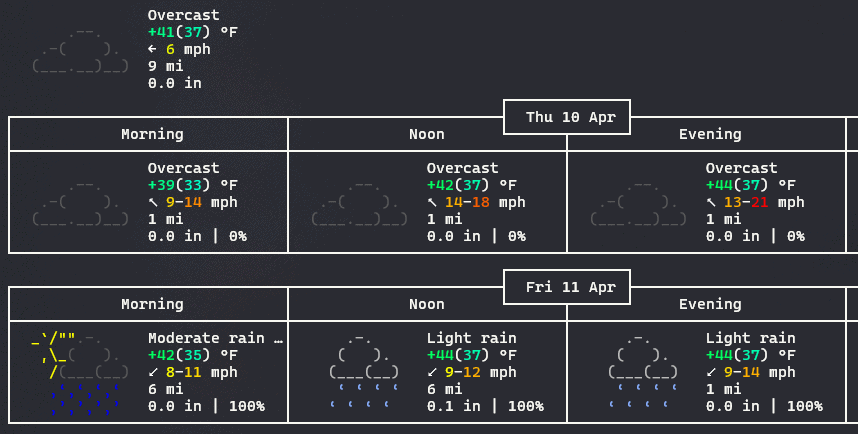
curl wttr.in 使用 curl 命令访问 wttr.in 网站。
Use curl wttr.in to view a formatted forecast of the local weather directly from the terminal:
使用 curl wttr.in 命令在终端中直接查看本地天气的格式化预报:
pkill
Use pkill to kill a running process by name instead of the PID required for the kill command:
使用 pkill 命令按进程名称而非进程 ID(PID)来终止正在运行的进程:
$ kill 5952
$ pkill syncthing
ls -S
Use ls -S to list files in the current directory sorted by size:
使用 ls -S 命令按文件大小排序列出当前目录中的文件:
$ ls -S
  this.txt week.txt self-hosted.txt in.txt
lsof -i :443
Use lsof -i :443 to quickly list the process(es) listening on port 443 from the command line:
使用 lsof -i :443 命令在命令行中快速列出监听端口 443 的进程:
$ lsof -i :443
  COMMAND PID USER FD TYPE DEVICE NODE NAME
  caddy   398 root 7u IPv4 32984  TCP  *:https
echo *.<filetype> 回显所有文件,文件扩展名为指定的文件类型。
Use echo *.<filetype> to list of all files of a specified filetype from the command line:
使用 `echo *.<文件类型>` 命令从命令行列出指定文件类型的所有文件:
$ echo *.txt
  this.txt week.txt in.txt self.txt hosted.txt
&&
Use && to execute a second command only if the first succeeds:
使用 && 仅在第一个命令执行成功时执行第二个命令:
/$ mkdir test_folder && cd test_folder
/test_folder$ _
;
Use ; to run multiple commands in succession (unlike &&, the second command will run regardless of the first's success):
使用分号 (;) 连续执行多个命令(与 && 不同,第二个命令无论第一个命令是否成功都会执行):
/$ mkdir test_folder; cd test_folder
/test_folder$ _
>
Use > to write the output of a command to a specified file:
使用 > 将命令的输出写入指定文件:
/$ echo "This Week in Self-Hosted" > example.txt
/$ cat example.txt
  This Week in Self-Hosted
>>
Use >> to append characters to the end of an existing file:
使用 >> 将字符追加到现有文件的末尾:
/$ cat example.txt
   This Week in
/$ echo "Self-Hosted" >> example.txt
/$ cat example.txt
  This Week in
  Self-Hosted
cd ../.. cd 上一目录
Use cd ../.. to traverse back two directories from the current location via the command line (as opposed to executing cd .. twice to achieve the same):
使用 `cd ../..` 命令在命令行中从当前位置向上返回两个目录(而非通过执行两次 `cd ..` 命令来实现相同效果):
appdata/ghost/selfhst$ cd ../..
appdata$
groups 组
Use the groups command to view a list of the groups the current user belongs to:
使用“组”命令查看当前用户所属的组列表:
/$ groups
  sholly cdrom floppy sudo audio video users docker selfhst
wc -l <file> wc -l <文件名>
Use wc -l <file> to easily display the number of lines in a given file directly from the command line:
使用 wc -l <文件名> 命令,可以直接在命令行中快速显示指定文件的行数:
/$ wc -l example.txt
  8 example.txt
uniq <file> uniq <文件>
Use the uniq command to easily view the unique lines of a file from the command line:
使用 uniq 命令,您可以轻松地在命令行中查看文件中的唯一行:
/$ cat example.txt
  This
  This
  Week
  Week
  in
  Self-Hosted
/$ uniq example.txt
  This
  Week
  in
  Self-Hosted
head -n 5 <file> head -n 5 <文件名>
Use head -n 5 <file> to quickly view the first five (or any number of) lines of a file from the terminal:
使用 `head -n 5 <文件名>` 命令,可在终端中快速查看文件的前五行(或指定行数):
/$ head -n 5 example.txt
  This
  is
  This
  Week
  in
tail -n 5 <file> tail -n 5 <文件>
Use tail -n 5 <file> to quickly view the last five (or any number of) lines of a file from the terminal, which is helpful for tasks like viewing the latest output from a log file:
使用 `tail -n 5 <文件名>` 命令,可以在终端中快速查看文件的最后五行(或指定行数)。这对于查看日志文件的最新输出等任务非常有用:
/$ tail -n 5 example.txt
  is
  This
  Week
  in
  Self-Hosted
du -sh *
Use du -sh * to easily preview a list of all files and folders in a directory with sizes displayed in a human-readable format:
使用 `du -sh *` 命令,可以轻松预览目录中所有文件和文件夹的列表,并以易于阅读的格式显示文件大小:
/$ du -sh *
  20K docker-compose.yml
  1K  .env
  56K example.txt
ls -lt
Use ls -lt to list files and folders in a directory sorted by modification time, which can be helpful for quickly finding recently modified files in large folders:
使用 ls -lt 命令按修改时间排序列出目录中的文件和文件夹,这在大型文件夹中快速查找最近修改的文件时非常有用:
/$ ls -lt
  Dec 06 05:01 docker-compose.yml
  Dec 05 11:56 example.txt
  Nov 01 08:34 log.txt
which 哪个
Use the which command to easily find the location of an executable file for troubleshooting, debugging, and other use cases:
使用 which 命令可以轻松找到可执行文件的位置,用于故障排除、调试和其他场景:
/$ which docker
  /usr/bin/docker
/$ which cat
  /usr/bin/cat
history 历史
Use the history command to easily view a numbered list of commands previously entered into the terminal:
使用“历史”命令,可以轻松查看终端中之前输入的命令的编号列表:
/$ history
  1 docker compose up
  2 cat compose
  3 ls -l
  4 python3 customScript.py
history + ! 历史 + !
After running history, preface a number from the provided list with ! to easily rerun that command:
在运行历史记录后,在提供的列表中用 ! 符号前缀一个数字,即可轻松重新运行该命令:
/$ history
  1 docker compose up
  2 cat compose
  3 ls
  4 python3 customScript.py
/$ !3
  compose.yml customScript.py
Ctrl + U
Use Ctrl + U to easily delete any text in the current prompt, which can be especially useful when clearing password prompts where the cursor isn't tracked:
使用 Ctrl + U 快速删除当前提示中的任何文本,这在清除密码提示时特别有用,因为此时光标位置不会被跟踪:
/$ docker compose up ghost_
/$ _
Ctrl + P
Use Ctrl + P to cycle through the command line history without having to move your fingers from the default typing position.
使用 Ctrl + P 键在命令行历史记录中循环切换,无需将手指从默认输入位置移开。
Ctrl + O
When paired with the Ctrl + P command, Ctrl + O can be used as a shortcut to execute the command queued by Ctrl + P while also automatically queuing the next command from the shell's history.
当与 Ctrl + P 命令配合使用时,Ctrl + O 可作为快捷键,用于执行 Ctrl + P 命令队列中的命令,同时自动将 shell 历史中的下一个命令加入队列。
Ctrl + W
Use Ctrl + W to quickly remove the last word from the command line. (If you've spent any amount of time online, you'll recognize the shorthand for this command, ^W, as a playful reference when people correct or delete something they had previously written.)
使用 Ctrl + W 快速删除命令行中的最后一个单词。 (如果你在网上待过一段时间,你会认出这个命令的缩写 ^W,这是人们在纠正或删除之前写的内容时的一种俏皮用法。)
/$ docker compose up ghost_
/$ docker compose up_
Ctrl + Y
Use Ctrl + Y to paste the string previously added to the buffer via Ctrl + W:
使用 Ctrl + Y 粘贴之前通过 Ctrl + W 添加到缓冲区的字符串:
/$ docker compose up ghost_

# Ctrl + W
/$ docker compose up_

# Ctrl + Y
/$ docker compose up ghost_
Ctrl + T
Use Ctrl + T to quickly swap the last two characters before the cursor (most helpful for quickly correcting accidental suod or sl occurrences):
使用 Ctrl + T 快速交换光标前两个字符(最适合快速修正意外出现的 suod 或 sl 情况):
/$ suod_
/$ sudo_
!-2
Use !-2 to quickly re-run the second most recent command:
使用 !-2 快速重新执行最近执行的第二个命令:
/$ ls
  example.txt
/$ cat example.txt
  This Week in Self-Hosted
/$ !-2
  ls
  example.txt
time read 阅读时间
Use time read as a handy stopwatch that can be used directly from the terminal (press any key to stop):
将时间读取功能用作一个方便的计时器,可直接在终端中使用(按任意键停止):
/$ time read
  real 0m4.588s
Ctrl + k
Use Ctrl + k to delete everything from the current cursor position to the end of the line:
使用 Ctrl + k 删除当前光标位置到行末的所有内容:
/$ docker compose_ up ghost
/$ docker compose_
Ctrl + u
Use Ctrl + u to easily delete all text from the current line preceding the location of the cursor:
使用 Ctrl + u 快速删除光标当前所在位置之前的所有文本:
/$ docker compose up_
/$ _
/$ docker compose up -d _ghost
/$ ghost
Ctrl + w
Use Ctrl + w to easily delete the previous word from the command line:
使用 Ctrl + w 快速删除命令行中的上一个单词:
/$ locate example_
<Ctrl + w>
/$ locate _
locate 定位
Use the locate command to search for files directly from the command line, separating terms with an asterisk if searching for multiple words. The command also supports several flags, including -i for disabling case sensitivity.
使用 locate 命令直接从命令行搜索文件,若要搜索多个单词,请用星号分隔。该命令还支持多个选项,包括 -i 用于禁用大小写敏感。
/$ locate example
  /home/user1/example.txt
/$ locate -i example
  /home/user1/example.txt
  /home/user2/Example.txt
/$ locate test*file
  /home/user1/test-file.txt
which 哪个
Use the which command to find the first location of an executable file, or pair it with -a (all) to identify all locations:
使用 which 命令查找可执行文件的第一个位置,或与 -a(全部)选项配合使用以识别所有位置:
/$ which ls
  /usr/bin/ls
/$ which -a ls
  /usr/bin/ls
  /bin/ls
alias 别名
Use the alias command to create customized shortcuts for frequently used commands:
使用别名命令为常用的命令创建自定义快捷方式:
/$ alias test='cat example.txt'
/$ test
  This Week in Self-Hosted
unalias 取消别名
Use the unalias command to remove any bash aliases previously created by the user:
使用 unalias 命令删除用户之前创建的任何 Bash 别名:
/$ alias test='cat example.txt'
/$ test
  This Week in Self-Hosted
/$ unalias test
/$ test
/$ _
wc 卫生间
Use the wc command to show the count of lines, words, and bytes in a file:
使用 wc 命令显示文件中的行数、单词数和字节数:
/$ wc example.txt
  3  4  27 example.txt
Ctrl + r
Use Ctrl + r to search for a previously used command directly from the command line:
使用 Ctrl + r 直接从命令行搜索之前使用过的命令:
/$ (reverse-i-search): 'docker compo': docker compose up -d ghosttouch 触摸
Use the touch command to instantly create a new file from the command line. Multiple files can be created if multiple file names are entered, and the command can also be modified with -c to skip creation if the file already exists or -m to update an existing file's timestamp.
使用 touch 命令可在命令行中快速创建新文件。若输入多个文件名,可同时创建多个文件。该命令还可通过 -c 参数跳过已存在文件的创建,或通过 -m 参数更新现有文件的时间戳。
/$ ls
  example.txt
/$ touch example-2.txt
/$ ls
  example.txt example-2.txt
/$ touch example-3.txt example-4.txt
/$ ls
  example.txt example-2.txt example-3.txt example-4.txt
Ctrl + l
Use Ctrl + l (that's a lowercase "L") to instantly clear the terminal window while preserving any input on the current line:
使用 Ctrl + l(这里是小写字母“L”)可以立即清空终端窗口,同时保留当前行中的输入内容:
/$ cat example.txt
 This
 Week
 in
 Self-Hosted
$ gzip example.txt_
$ gzip example.txt_
grep 抓握
Use the grep (global regular expression print) command to search for and identify patterns and strings in files:
使用 grep(全局正则表达式打印)命令在文件中搜索并识别模式和字符串:
/$ cat example.txt
 This
 Week
 in
 Self-Hosted
$ grep host example.txt
 Self-Hosted
rev 修订
Use the rev command to reverse a string of text directly from the command line:
使用 rev 命令直接从命令行反转一段文本:
/$ echo "This Week in Self-Hosted" | rev
 detsoH-fleS ni keeW sihT
nohup
Preface commands with nohup (no hang up) to continue running them after exiting a terminal session. Upon completion, nohup will create a file titled 'nohup.out' with the output of the command for completion verification.
在命令前添加 nohup(不挂起)以确保在退出终端会话后继续执行该命令。执行完成后,nohup 会创建一个名为 'nohup.out' 的文件,其中包含命令的输出内容,用于验证执行结果。
/$ nohup apt update
  nohup: ignoring input and appending output to 'nohup.out'

/$ cat nohup.out
  ...
  Reading package lists...
  Building dependency tree...
  Reading state information...
  6 packages can be upgraded.
&&
Use && to run multiple commands under the condition that subsequent commands after && will only run if the preceding command is successful (most commonly used to execute apt update and apt upgrade in a single command):
使用 && 运算符在满足以下条件时执行多个命令:仅当前一个命令执行成功时,后续命令才会执行(最常用于在单个命令中执行 apt update 和 apt upgrade):
/$ sudo apt update && sudo apt upgrademkdir -m
Use the -m flag when calling mkdir to simultaneously set the permissions of a new directory when creating it:
在调用 mkdir 时使用 -m 标志,可在创建新目录时同时设置其权限:
/$ mkdir -m 770 exampledirectory
/$ ls -l
  drwxrwx--- user group exampledirectory
curl ifconfig.me 使用 cURL 命令访问 ifconfig.me 网站
Use the command curl ifconfig.me to easily view your network's external IP address from the command line:
使用命令 curl ifconfig.me 即可通过命令行轻松查看网络的外部 IP 地址:
/$ curl ifconfig.me
  12.345.67.890
Alt + .
Press the . key while holding Alt to cycle through and reuse arguments from previous commands:
按住 Alt 键的同时按 . 键,可在之前命令的参数之间循环切换并重复使用:
/$ docker compose up -d some-docker-container
/$ docker compose stop <Alt .>
/$ docker compose stop some-docker-container
>
Preface a filename with > to clear the contents of the file directly from the command line:
在文件名前面加上 > 符号,即可直接从命令行清除文件内容:
/$ cat example.txt
  This Week in Self-Hosted
/$ > example.txt
/$ cat example.txt
/$
factor 因素
Use the factor command to list prime factors for a specified number directly from the command line:
使用 factor 命令直接从命令行列出指定数字的质因数分解:
/$ factor 14
  14: 2 7
/$ factor 46
  46: 2 23
mkdir -p
Add the -p flag (--parents) to the mkdir command to create a directory of new folders in a single command instead of repeating it multiple times for each new folder.
在 mkdir 命令后添加 -p 参数(--parents),即可一次性创建包含新文件夹的目录,而无需为每个新文件夹重复执行该命令。
Users can also utilize brace expansion with mkdir -p to simultaneously create multiple directories of folders with a similar structure.
用户还可以使用 mkdir -p 命令配合花括号展开功能,一次性创建多个具有相似结构的文件夹。
/$ mkdir -p /this/week/in/self-hosted
/$ tree
  .
  |___this
      |___week
          |___in
              |___self-hosted
/$ mkdir -p this/{day,week,month}/in/self-hosted
/$ tree
  .
  |___this
      |___day
          |___in
              |___self-hosted
      |___week
          |___in
              |___self-hosted
      |___month
          |___in
              |___self-hosted
column 列
Use the column command to view the contents of a file in an organized table or column format with options for specifying delimiters, width, names, alignment, and more.
使用列命令以有组织表格或列格式查看文件内容,并可设置分隔符、宽度、名称、对齐方式等选项。
In the example below, column is being used to display the example.txt file using a comma as the delimiter for the table.
在下面的示例中,列被用于显示以逗号作为分隔符的 example.txt 文件。
/$ cat example.txt
  Task,Completed (Y/N)
  Research,Y
  Setup,Y
  Deploy,N
  Analyze,N
/$ column example.txt -t -s ","
  Task       Completed (Y/N)
  Research   Y
  Setup      Y
  Deploy     N
  Analyze    N
Prefacing commands with <space>
在命令前添加空格
Preface a command with a single space to omit it from being logged in the terminal's bash history:
在命令前添加一个空格,以避免该命令被记录在终端的 Bash 历史中:
/$ history
  1000 docker compose up
  1001 cd ~
/$ rm example.txt
/$ history
  1000 docker compose up
  1001 cd ~
rename 重命名
Use the rename command to easily rename multiple files (or file extensions) at the same time using patterns in the file names. Depending on your distribution, you may need to install rename (apt install rename) before using it.
使用 rename 命令可以轻松地同时重命名多个文件(或文件扩展名),并根据文件名中的模式进行操作。根据您的系统发行版,您可能需要先安装 rename 命令(例如通过 apt install rename)。
/$ ls
  example-1.txt example-2.txt
/$ rename 's/example/test/' *.txt
/$ ls
  test-1.txt test-2.txt
/$ rename 's/.txt/.csv/' *.txt
/$ ls
  test-1.csv test-2.csv
cd -
Use the cd - command to easily navigate back to the previous directory when traversing folders:
使用 cd 命令可轻松返回上一级目录:
/$ cd /some/path
/some/path$ cd /another/path
/another/path$ cd -
/some/path$ _
Ctrl + x + e
Ctrl + x + e is a useful shortcut for instantly firing up an editor from the command line. By default, the shortcut will open a blank editor – but its usefulness shines when entered along with a line of text, which will automatically appear in the first line of the editor after hitting Ctrl + x + e.
Ctrl + x + e 是一个实用的快捷键,可用于从命令行快速打开编辑器。默认情况下,该快捷键会打开一个空白编辑器——但其真正价值在于与文本行一起使用时,输入的文本会自动出现在编辑器的第一行,随后按下 Ctrl + x + e 即可打开编辑器。
This is particularly handy when running complex commands that may need to be documented for future reference.
这在执行需要记录以备将来参考的复杂命令时尤为方便。
/$ _

GNU nano 7.2
_


/$ echo -e "correct\fhorse\fbattery\fstaple"

GNU nano 7.2
echo -e "correct\fhorse\fbattery\fstaple"_
cal 卡尔
Use the cal command to display the current calendar month with the current date highlighted on the command line. The command can also be paired with flags for additional functionality: -y to show the entire year with the current date highlighted, -j to show the month using the Julian calendar, or with a two-digit month or four-digit year to specify a different point in time.
使用 cal 命令在命令行上显示当前日历月份,并高亮显示当前日期。该命令还可以与标志结合使用以实现更多功能:-y 显示整个年份并高亮显示当前日期,-j 使用儒历显示月份,或使用两位数月份或四位数年份指定不同时间点。
/$ cal

      February 2024
  Su Mo Tu We Th Fr Sa
               1  2  3
   4  5  6  7  8  9 10
  11 12 13 14 15 16 17
  18 19 20 21 22 23 24
  25 26 27 28 29

/$ cal 02 2023

      February 2023
  Su Mo Tu We Th Fr Sa
            1  2  3  4
   5  6  7  8  9 10 11
  12 13 14 15 16 17 18
  19 20 21 22 23 24 25
  26 27 28
cut 切割
Use the cut command to parse characters or sections from the lines of a file and write them to the standard output. Cut also supports multiple options for parsing – cut by byte (-b), character (-c), or delimiter (-d).
使用 cut 命令从文件的行中解析字符或段落,并将其写入标准输出。cut 还支持多种解析选项——按字节 (-b)、按字符 (-c) 或按分隔符 (-d) 进行解析。
In the example below, we use the delimiter option (-d) to extract the second section (-f) after the comma in each line of the file.
在下面的示例中,我们使用分隔符选项(-d)来提取文件中每行逗号后的第二个部分(-f)。
/$ cat example.txt
  This,Week
  in,Self-Hosted

/$ cut -d "," -f 2 example.txt
  Week
  Self-Hosted
fold 折叠
Use the fold command to wrap each line of a file based on a specified number of characters when viewing the output from a display with a limited width. By default the command wraps lines every 80 characters, which can be configured with the -w flag (-w50 for 50 characters, etc.). Adding the -s flag also ensures words are not broken as the command runs.
使用折行命令,根据指定的字符数将文件中的每行折行显示,适用于屏幕宽度有限的显示设备。默认情况下,该命令每 80 个字符折行一次,可通过 -w 参数进行配置(例如 -w50 表示每 50 个字符折行)。添加 -s 参数可确保折行时不拆分单词。
/$ cat example.txt
This Week in Self-Hosted is a weekly newsletter published every Friday morning with a recap of the latest and greatest in self-hosted news, software, and content.

/$ fold example.txt
This Week in Self-Hosted is a weekly newsletter published every Friday morning w
ith a recap of the latest and greatest in self-hosted news, software, and conten
t.

/$ fold -w75 -s example.txt
This Week in Self-Hosted is a weekly newsletter published every Friday
morning with a recap of the latest and greatest in self-hosted news,
software, and content.
watch 观看
Use the watch command to monitor changes to the output of another command over intervals of time. This is useful when monitoring things like script results, disk usage, and other tools that print a response as an output.
使用 watch 命令来监控另一个命令的输出在一定时间间隔内的变化。这在监控脚本结果、磁盘使用情况以及其他以响应形式输出结果的工具时非常有用。
The command also comes with a number of helpful options including specifying an interval other than the default two seconds (-n), highlighting the differences between outputs (-d), or terminating the watch command when the output changes (-g). If not configuring the command with an option to automatically stop, use Ctrl + C to manually exit.
该命令还提供了一系列实用选项,包括指定默认两秒以外的间隔时间(-n)、突出显示输出之间的差异(-d),或在输出发生变化时终止监视命令(-g)。若未通过选项配置自动停止功能,请使用 Ctrl + C 手动退出。
/$ watch date

Fri Feb 2 07:30:00 EST 2024
                 2
time 时间
Prefacing a command with time outputs the amount of time it takes to execute. This is useful for measuring and optimizing the performance of scripts, downloads, and other tools.
在命令前加上时间参数会显示执行该命令所需的时间。这对于测量和优化脚本、下载和其他工具的性能非常有用。
The output of time consists of three values: the real time elapsed, the CPU time in user mode, and the CPU time in kernel mode.
时间输出包含三个值:实际经过时间、用户模式下的 CPU 时间以及内核模式下的 CPU 时间。
/$ time python3 generate-rss.py
  real   0m8.210s
  user   0m1.779s
  sys    0m0.327s
yes 是的
In Linux, the yes command outputs a string of characters until stopped ('y' by default if a string isn't provided). This is helpful when executing recurring tasks or writing scripts that include commands with prompts for user input.
在 Linux 中,yes 命令会输出一个字符串,直到被停止(默认情况下为 'y',如果未提供字符串)。这在执行重复任务或编写包含需要用户输入的命令的脚本时非常有用。
And while this can be useful for those times you'd like to step away while a process runs, there's a reason many commands require manual user input – so be cautious when using yes to automate those you aren't familiar with.
虽然这在需要暂时离开而让某个进程继续运行时非常有用,但许多命令需要手动用户输入是有原因的——因此,在使用“yes”来自动化那些你不熟悉的命令时要格外小心。
/$ yes This Week in Self-Hosted
  This Week in Self-Hosted
  This Week in Self-Hosted
  This Week in Self-Hosted
  This Week in Self-Hosted
  ...
/$

/$ yes | bash docker_restart.sh
  Restart Docker service? y
/$
comm 通信
Use the comm command to compare two sorted files line-by-line directly from the terminal. As shown below, the output of the command includes three columns – the first for unique lines from the first file, the second for unique lines from the second file, and the third for shared lines between the two files.
使用 comm 命令可在终端中直接按行比较两个已排序的文件。如下所示,该命令的输出包含三列:第一列为第一个文件中的唯一行,第二列为第二个文件中的唯一行,第三列为两个文件中相同的行。
The command can also be used with various flags to alter its output (-1, -2, -3 to suppress the various columns, -output-delimiter to separate columns with a specified character, -check-order to ensure the files are sorted correctly).
该命令还可与多种选项配合使用以修改输出格式(-1、-2、-3 用于抑制不同列的显示,-output-delimiter 用于指定列分隔符,-check-order 用于确保文件排序正确)。
/$ comm example-1.txt example-2.txt

                            This
                            Week
                            in
Self-Hosted
              Open-Source
tee T 恤
The tee command allows users to write the output of a command to a file while also viewing it in the terminal. In the example below, I'm viewing the contents of a file (cat example.txt) while also using tee to write the output of cat example.txt to another file (output.txt).
tee 命令允许用户将命令的输出写入文件,同时在终端中查看输出内容。在下面的示例中,我正在查看一个文件的内容(cat example.txt),同时使用 tee 将 cat example.txt 的输出写入另一个文件(output.txt)。
/$ cat example.txt | tee output.txt

This
Week
in
Self-Hosted

/$ cat output.txt

This
Week
in
Self-Hosted
z-commands Z 命令
Certain popular commands (cat, grep, less, etc.) can be prefaced with the letter z to allow command line users to interact with gzip-compressed files without extracting them. This is helpful, for example, if you're reading compressed logs in a directory you don't have permissions to write/extract to.
某些常用命令(如 cat、grep、less 等)可以在前面添加字母 z,以便命令行用户在不解压的情况下与 gzip 压缩文件进行交互。这在某些情况下非常有用,例如当你需要阅读某个目录中的压缩日志文件,而该目录不具备写入或解压权限时。
/$ cat example.txt

This Week
in Self-Hosted

/$ gzip example.txt
/$ zcat example.txt.gz

This Week
in Self-Hosted
dos2unix
Occasionally, I'll struggle running commands against a text file only to discover it was created on Windows and includes carriage returns at the end of each line. To quickly convert a file to Unix-compatible line breaks (line feeds) from the command line, install and run dos2unix.
有时,我在对文本文件执行命令时会遇到困难,后来才发现该文件是在 Windows 系统下创建的,每行末尾都包含换行符(回车符)。要快速将文件中的换行符转换为 Unix 兼容的换行符(换行符),可以在命令行中安装并运行 dos2unix 工具。
(Note that dos2unix probably won't be installed on your machine by default, so look up the installation instructions for your operating system before executing.)
(注意:dos2unix 可能不会默认安装在您的系统中,因此在执行前请先查阅您操作系统的安装说明。)
/$ dos2unix this_week_in_self_hosted.txt
dos2unix: converting file this_week_in_self_hosted.txt to Unix format...
Ctrl + e
Use Ctrl + e to relocate your cursor to the end of the line when typing a long command. The shortcut is much quicker than holding an arrow key and easier than using the Home key as your fingers won't need to leave the default typing position.
在输入长命令时,使用 Ctrl + e 组合键将光标移动到行尾。此快捷键比按住方向键更快,也比使用 Home 键更方便,因为您的手指无需离开默认输入位置。
/$ dcker co|mpose up ghost-blog
/$ dcker compose up ghost-blog|
Ctrl + a
When typing a long command, use Ctrl + a to relocate your cursor back to the beginning of the line if you find yourself needing to fix an error or typo. The shortcut is much quicker than holding an arrow key and easier than using the Home key as your fingers won't need to leave the default typing position.
在输入较长的命令时,如果需要修正错误或拼写错误,可以使用 Ctrl + a 组合键将光标快速移动回行首。与按住方向键相比,此快捷键操作速度更快,且比使用 Home 键更为便捷,因为手指无需离开默认输入位置。
/$ dcker compose up ghost-blog|
/$ |dcker compose up ghost-blog
/$ do|cker compose up ghost-blog
find -size +100M 查找大小大于等于 100MB 的文件
The command find -size +100M finds all files in the working directory greater than or equal to 100MB. Adjust 100M to your liking if you'd like to search for files of a different size (for example, 1G for 1GB).
命令 `find -size +100M` 用于查找工作目录中所有大小等于或大于 100MB 的文件。若需搜索不同大小的文件,可将 100M 调整为合适的值(例如,1G 表示 1GB)。
/$ find -size +100M
   ./this-week-in-self-hosted.db
   ./this-week-in-self-hosted.log
du -h --max-depth=1
The command du -h --max-depth=1 allows users to list the directories in a folder while displaying their sizes in a human-readable format. Breaking it down into individual pieces: du lists directories and sizes within the current directory, -h converts the displayed sizes to human-readable format, and --max-depth=1 defines what folder level the command runs (all subfolders will be displayed if omitted).
命令 du -h --max-depth=1 允许用户列出文件夹中的目录,并以人类可读的格式显示其大小。将其分解为各个部分:du 列出当前目录中的目录及其大小,-h 将显示的大小转换为人类可读的格式,--max-depth=1 定义命令运行的文件夹级别(如果省略,将显示所有子文件夹)。
/$ du -h --max-depth=1
   16M ./This
   27M ./Week
   756k ./In
   1.1G ./Self-Hosted
> file.txt > 文件.txt
Use the command > file.txt to flush the contents of a file from the command line (replacing file.txt with the name of your own file) – helpful for clearing old log files when troubleshooting via CLI.
使用命令 > file.txt 可从命令行清空文件内容(将 file.txt 替换为您的文件名)——在通过 CLI 进行故障排除时,此操作有助于清除旧日志文件。
/$ cat example.txt
   This Week in Self-Hosted
/$ > example.txt
/$ cat example.txt
/$
!$
The characters !$ can be used as a shortcut to reuse or repeat the argument used in the most recent command. For instance, they can be used to easily navigate to a folder path that was recently created or modified.
字符 !$ 可用作快捷方式,用于重复使用或重复最近命令中使用的参数。例如,它们可用于快速跳转到最近创建或修改的文件夹路径。
/$ mkdir /this/week/in/self/hosted
/$ cd !$
    cd /this/week/in/self/hosted
/this/week/in/self/hosted$
who -b 谁 -b
The command who -b displays the date and time of the machine's last reboot:
命令 who -b 显示机器上次重启的日期和时间:
$ who -b
    system boot 2023-10-27 05:34
echo "!!" 回显 "!!"
The command echo "!!" creates a script of the previously executed command – helpful for capturing complex commands that will need to be reused in the future.
命令 `echo "!!"` 会将之前执行的命令保存为一个脚本,这对于捕获需要在未来重复使用的复杂命令非常有用。
$ rsync -av --delete /home/appdata /backup

# Capture the previous command in a file named 'selfhost.sh' in the current working directory
$ echo "!!" > selfhost.sh

# List the newly-created file to confirm it was created
$ ls
    selfhost.sh

# Open the file to confirm its contents
$ nano selfhost.sh
    rsync -av --delete /home/appdata /backup

# Use the script file to easily execute the saved command in the future
$ bash selfhost.sh
mkdir -p
Appending the -p flag (--parents) to the mkdir command allows users to create entire directory trees at once rather than using multiple mkdir commands to create nested folders:
在 mkdir 命令后添加 -p 标志(--parents)允许用户一次性创建整个目录树,而非通过多次执行 mkdir 命令来创建嵌套文件夹:
mkdir -p personal/storage/photosnl 荷兰
Use the command nl to preface each line with a number when viewing the contents of a file. This is particularly helpful when trying to reference lines in a large file.
使用 nl 命令在查看文件内容时为每行添加行号。这在需要引用大型文件中的特定行时特别有用。
user@selfhst:/$ cat example
   This
   Week
   in
   Self-Hosted
user@selfhst:/$ nl example
   1  This
   2  Week
   3  in
   4  Self-Hosted
tac 战术
Use the command tac (cat backwards) to view the contents of a file in reverse order. This is particularly helpful when viewing logs, as the most recent writes are typically appended to the end of the file.
使用命令 tac(cat 的反向形式)以倒序查看文件内容。此功能在查看日志时尤为有用,因为最新写入的内容通常会附加到文件末尾。
user@selfhst:/$ cat example
   This
   Week
   in
   Self-Hosted
user@selfhst:/$ tac example
   Self-Hosted
   in
   Week
   This
Fixing errors with ^typo^correction
使用^typo^correction 修复错误
Use ^typo^correction to fix mistakes in previous commands without having to retype the entire command from scratch:
使用 ^typo^correction 修复之前命令中的错误,而无需重新输入整个命令:
user@selfhst:/$ cd /home/usr/appdata
   -bash: cd: /home/usr/appdata: No such file or directory
user@selfhst:/$ ^usr^user
user@selfhst:/home/user/appdata$ _
Prefacing commands with <space>
在命令前添加空格
For those with something to hide, prefacing commands with a single space in the command line prevents them from being recorded in the terminal's history:
对于需要隐藏操作的用户,在命令行中在命令前添加一个空格,可以防止该命令被记录在终端历史记录中:
$ ls -l
$  cd..
$ cd /
$ history

  10 ls -l
  11 cd /
curl ifconfig.me 使用 cURL 命令访问 ifconfig.me 网站
Displays your network's external IP address in the terminal.
在终端中显示网络的外部 IP 地址。
$ curl ifconfig.me

xx.xxx.xx.xxx
sudo!!
Prefaces the previously executed command with sudo to avoid having to retype the entire command a second time:
在之前执行的命令前添加 sudo,以避免需要再次输入整个命令:
$ apt update

E: Could not open lock file ...

$ sudo !!

sudo apt update
[sudo] password for user: