

Deploy on cloud 云部署
This guide shows you how to set up and use LangGraph Platform to deploy on cloud.
本指南将向您展示如何设置和使用 LangGraph 平台以在云端部署。
开始之前,请确保您拥有以下内容:1. Create a repository on GitHub
To deploy an application to LangGraph Platform, your application code must reside in a GitHub repository. Both public and private repositories are supported. For this quickstart, use the
要将应用程序部署到 LangGraph 平台,您的应用程序代码必须存储在 GitHub 仓库中。支持公共和私有仓库。对于这个快速入门,请使用2. Deploy to LangGraph Platform
3. Test your application in LangGraph Studio
Once your application is deployed:
一旦您的应用程序部署完成:4. Get the API URL for your deployment
现在可以测试 API:
恭喜!您已使用 LangGraph 平台部署了一个应用程序。 Here are some other resources to check out:
这里有一些其他资源供您参考:
本指南将向您展示如何设置和使用 LangGraph 平台以在云端部署。
Prerequisites 先决条件
Before you begin, ensure you have the following:开始之前,请确保您拥有以下内容:
- A GitHub account 一个 GitHub 账号
- A LangSmith account – free to sign up
一个 LangSmith 账号——免费注册
1. Create a repository on GitHub
1. 在 GitHub 上创建一个仓库
To deploy an application to LangGraph Platform, your application code must reside in a GitHub repository. Both public and private repositories are supported. For this quickstart, use the new-langgraph-project template for your application:要将应用程序部署到 LangGraph 平台,您的应用程序代码必须存储在 GitHub 仓库中。支持公共和私有仓库。对于这个快速入门,请使用
new-langgraph-project 模板为您的应用程序:
- Go to the
new-langgraph-projectrepository ornew-langgraphjs-projecttemplate.
前往new-langgraph-project仓库或new-langgraphjs-project模板。 - Click the
Forkbutton in the top right corner to fork the repository to your GitHub account.
点击右上角的Fork按钮,将仓库 fork 到您的 GitHub 账户。 - Click Create fork. 点击创建分支。
2. Deploy to LangGraph Platform
2. 部署到 LangGraph 平台
- Log in to LangSmith. 登录 LangSmith。
- In the left sidebar, select Deployments.
在左侧边栏中,选择部署。 - Click the + New Deployment button. A pane will open where you can fill in the required fields.
点击“+ 新建部署”按钮。将打开一个面板,您可以在其中填写所需字段。 - If you are a first time user or adding a private repository that has not been previously connected, click the Import from GitHub button and follow the instructions to connect your GitHub account.
如果您是首次使用或添加之前未连接的私有仓库,请点击“从 GitHub 导入”按钮,并按照说明连接您的 GitHub 账户。 - Select your New LangGraph Project repository.
选择您的 New LangGraph Project 仓库。 - Click Submit to deploy.
This may take about 15 minutes to complete. You can check the status in the Deployment details view.
点击“提交”以部署。这可能需要大约 15 分钟才能完成。您可以在“部署详情”视图中查看状态。
3. Test your application in LangGraph Studio
3. 在 LangGraph Studio 中测试您的应用程序
Once your application is deployed:一旦您的应用程序部署完成:
-
Select the deployment you just created to view more details.
选择您刚刚创建的部署以查看更多详细信息。 -
Click the LangGraph Studio button in the top right corner.
LangGraph Studio will open to display your graph.
点击右上角的 LangGraph Studio 按钮。LangGraph Studio 将打开以显示您的图。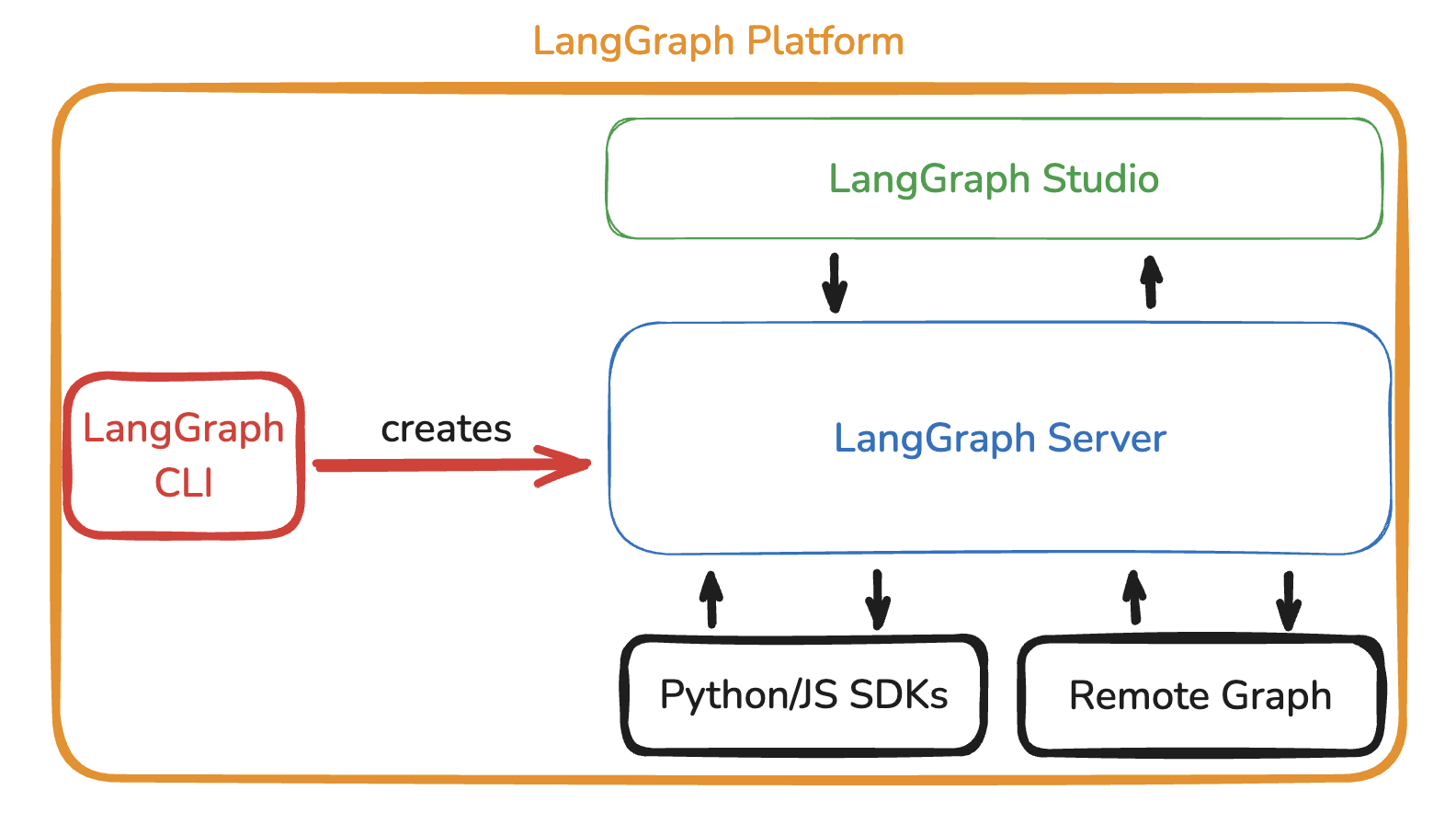
4. Get the API URL for your deployment
4. 获取你的部署 API URL
- In the Deployment details view in LangGraph, click the API URL to copy it to your clipboard.
在 LangGraph 的部署详情视图中,点击 API URL 将其复制到剪贴板。 - Click the
URLto copy it to the clipboard.
点击URL将其复制到剪贴板。
5. Test the API 5. 测试 API
You can now test the API:现在可以测试 API:
- Install the LangGraph Python SDK:
安装 LangGraph Python SDK:
- Send a message to the assistant (threadless run):
向助手发送消息(无线程运行):
Next steps 下一步
Congratulations! You have deployed an application using LangGraph Platform.恭喜!您已使用 LangGraph 平台部署了一个应用程序。 Here are some other resources to check out:
这里有一些其他资源供您参考: